Fill in and save a visit
Enter the data of a visit section by section. Save your progress as you go. You can save a visit that is not complete yet. When you have entered all its data, mark the visit as completed.
Who can do this: Principal Investigator, Sub-Investigator and Clinical Research Associate (Hospital). Other roles can open a visit, but they cannot enter or save its data.
Open a visit
Section titled “Open a visit”-
Open the study. Select the Subject Matrix tab.
-
In the row of the subject, select the visit in the Visits column.
To go to another visit of the subject, select it in the list of visits above the form. You can also use the arrows at the bottom of the page: Previous Visit on the left and Next Visit on the right.
Enter the data
Section titled “Enter the data”-
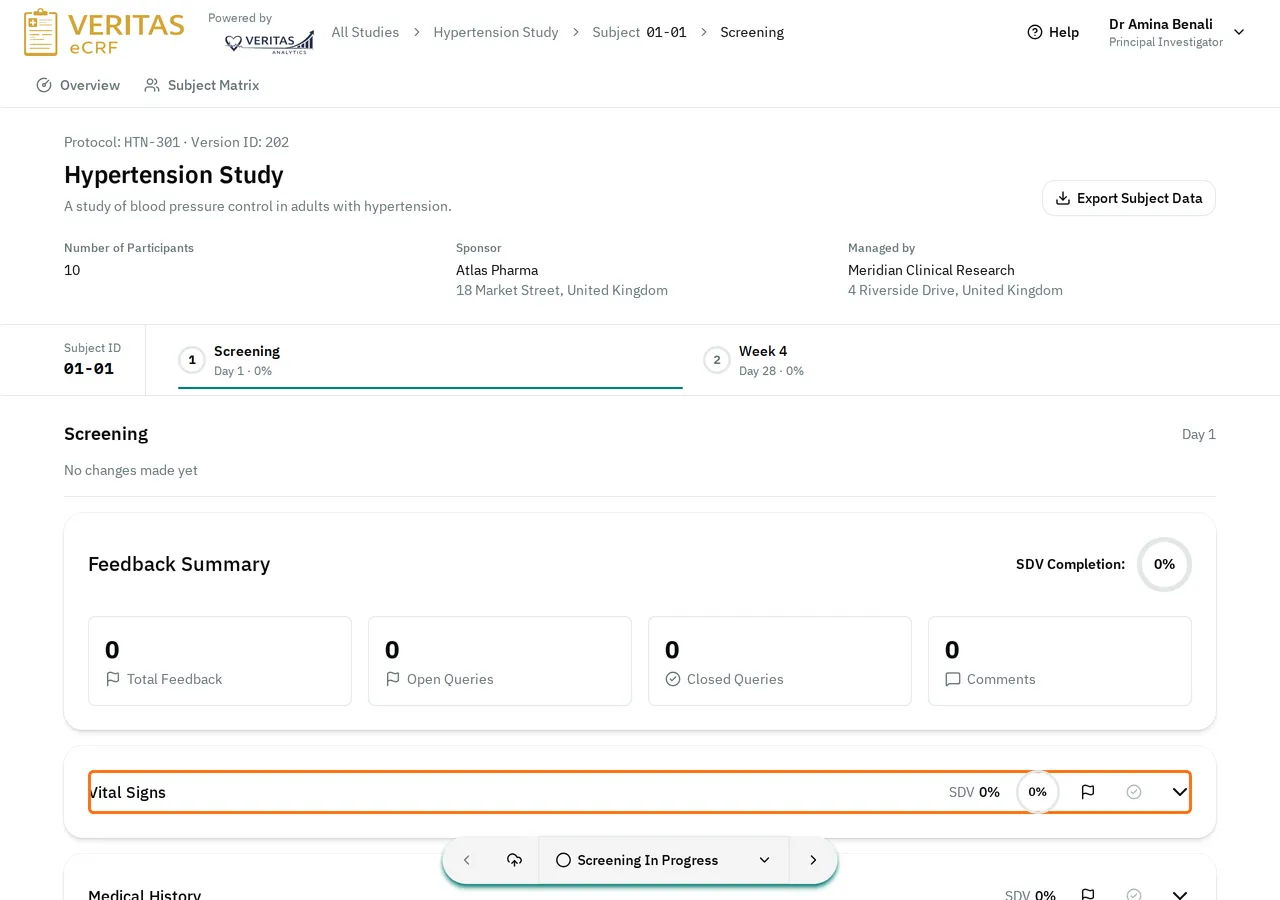
Select the title of a section to open it.
-
Fill in the fields of the section. The circle next to the title shows how much of the section is filled in.
-
Open the next section. Fill it in.
Save your progress
Section titled “Save your progress”The eCRF does not save the visit by itself. Save it before you leave it, and regularly while you work.
At the bottom of the page, select the cloud button (Save current progress without completing the visit).
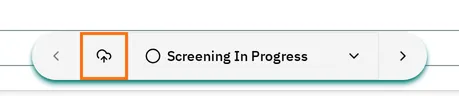
The eCRF shows Visit Progress Saved. The visit stays In Progress, and the top of the visit shows who last changed it and when.
Correct the fields in error
Section titled “Correct the fields in error”When a value is not valid, for example outside the expected range, the eCRF shows the field in red as soon as you type it. The reason shows under the field, and the title of the section shows the number of errors. To see the list of errors of a section, point to that number.
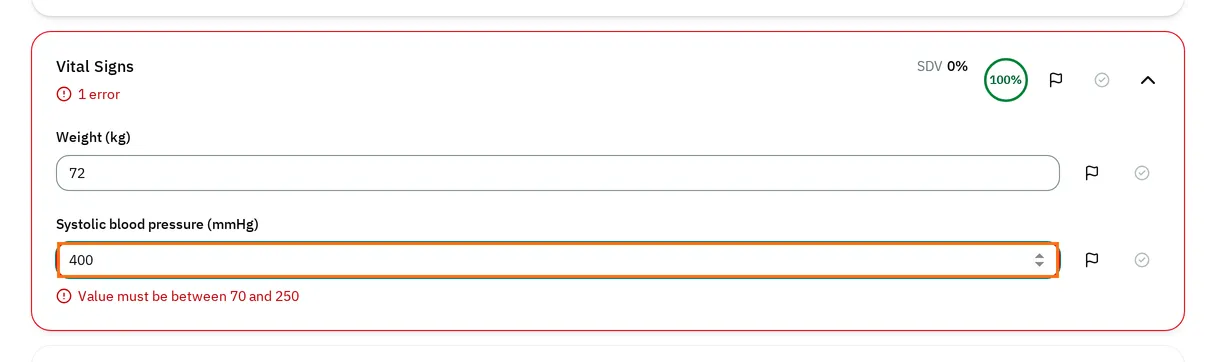
You can save a visit that has a field in error. But you must correct the field before you mark the visit as completed.
The eCRF checks that the required fields are filled in only when you mark the visit as completed.
Leave a visit with unsaved changes
Section titled “Leave a visit with unsaved changes”When you leave a visit before you save your changes, for example with Next Visit, the eCRF shows Unsaved Changes.
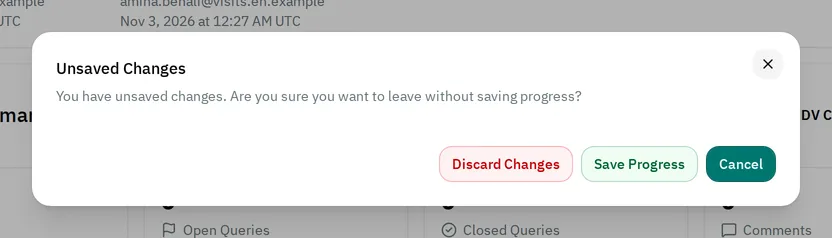
- To save your changes and leave, select Save Progress.
- To leave without your changes, select Discard Changes. The eCRF keeps the visit as you last saved it.
- To stay on the visit, select Cancel.
Before some actions on a field you changed, such as a response to a query, the eCRF shows Save Progress. Select Continue to save the visit and go on.
If you cannot enter or save data
Section titled “If you cannot enter or save data”- The visit shows Read-only: your role can view the visit, but not enter its data.
- The visit shows Completed: its fields are read-only and the cloud button is hidden. Set the visit back to In Progress to change it.
- The visit shows Locked: the study is locked, and nobody can change its data.
- A field shows a lock, and you cannot change it: a monitor has verified it against the source documents. See Correct source-verified data.
- The eCRF shows Saving Visit Progress Failed: read the message under it. Then save again.