Handle Data Quality alerts
Data Quality rules check your study’s data in the background. When a rule finds a problem, it raises an alert in the Data Quality tab. Review each alert. Record what you did about it.
Who can do this:
- Everyone who can open the study can see its alerts. A user who belongs to one site sees only the alerts of that site.
- The Clinical Research Associate, Data Manager, Clinical Research Administrator and System Administrator roles can acknowledge, resolve and reopen alerts, and run a rule again.
- Only the Data Manager, Clinical Research Administrator and System Administrator roles can suppress an alert.
Open the alerts
Section titled “Open the alerts”-
Open the study.
-
Select the Data Quality tab. A red number next to it counts the open alerts of Critical severity.
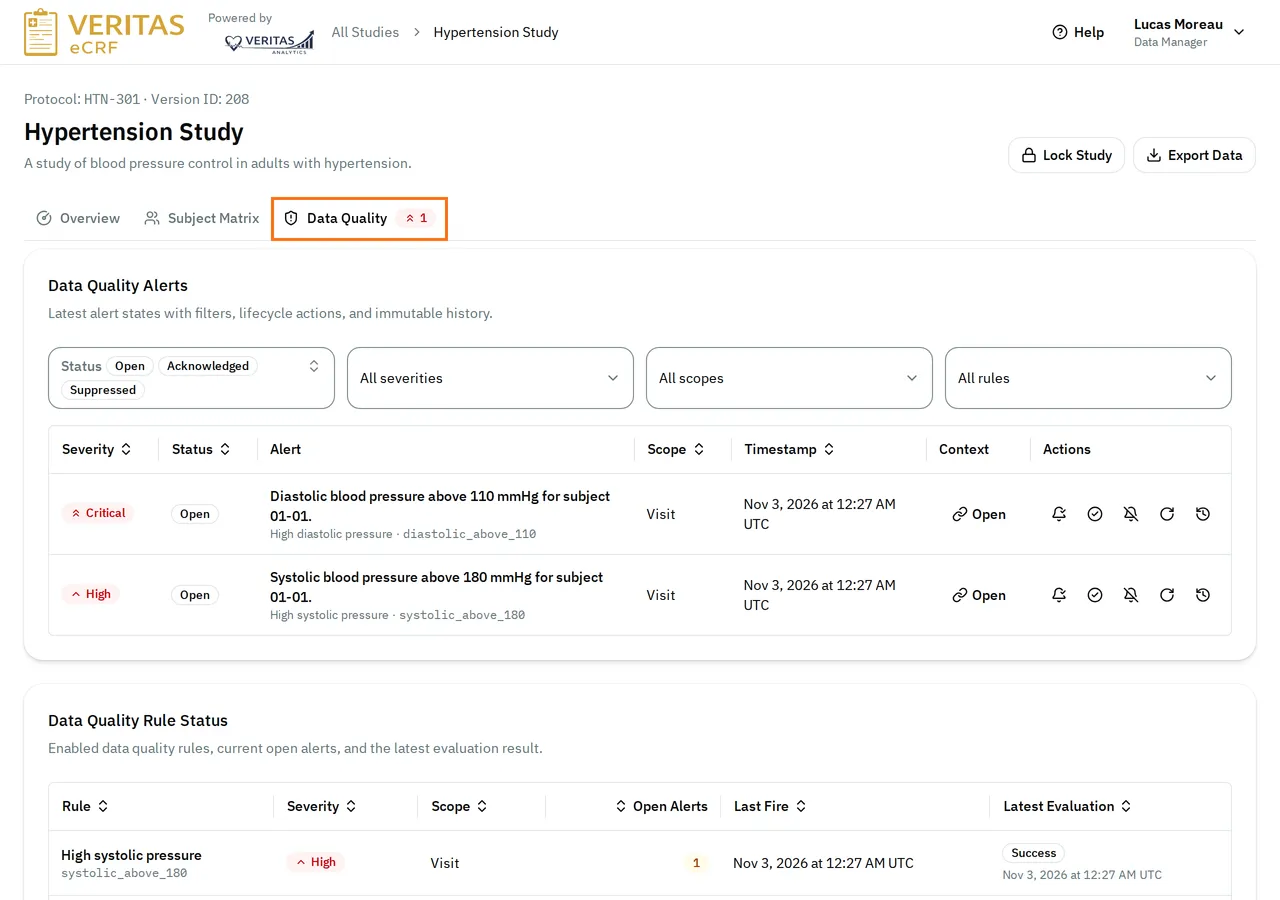
Your study chooses what this tab shows. This guide covers the Data Quality Alerts list.
The list groups the alerts by site. To find an alert, use the filters above the list:
- The Status filter shows the alerts with the statuses you select. It can hide the Resolved alerts until you select that status.
- The All severities, All scopes and All rules filters narrow the list to one severity, scope or rule.
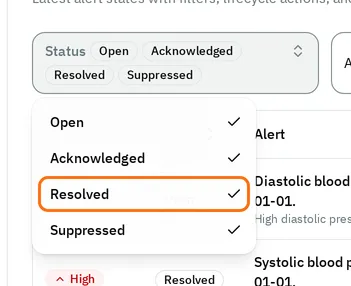
To see the data an alert is about, select Open in the Context column.
Acknowledge an alert
Section titled “Acknowledge an alert”Acknowledge an alert to show that someone is looking into it.
-
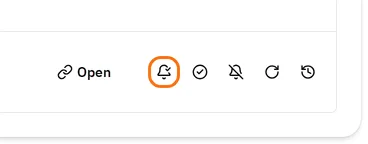
In the Actions column of the alert, select Acknowledge, the bell with a check mark. Point to a button to see its name.
-
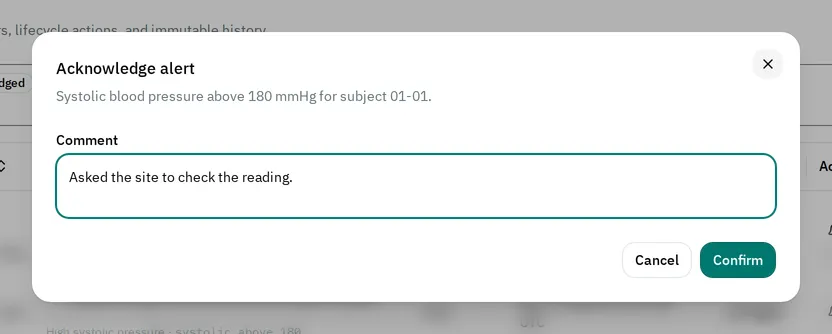
In Comment, you can type what you are doing about it.
-
Select Confirm.
The alert shows Acknowledged.
Resolve, suppress or reopen an alert
Section titled “Resolve, suppress or reopen an alert”These actions need a comment. Each study has its own minimum length, which shows under the comment, for example Minimum 10 characters required for this action. The Confirm button stays disabled until the comment is long enough.
- Select Resolve, the circle with a check mark, when the problem is dealt with. If the data still breaks the rule, the alert opens again the next time the rule runs.
- Select Suppress, the crossed-out bell, when the data is correct as it is, for example a confirmed exception. Select a Suppress reason and a Suppress until date. Until that date, the alert stays suppressed even if the rule still finds the problem.
- Select Reopen, the arrow, when the alert needs attention again.
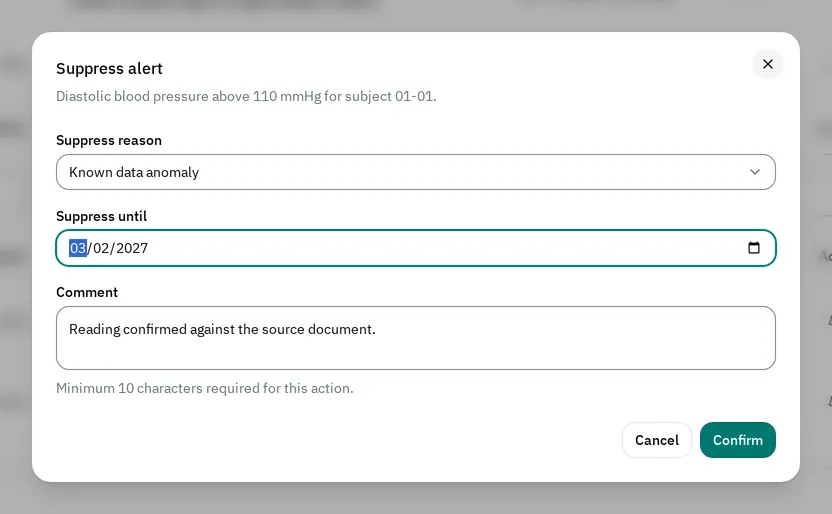
After the date, the alert shows Expired. If the rule still finds the problem the next time it runs, the alert opens again.
When alerts appear and clear
Section titled “When alerts appear and clear”The eCRF runs the rules in the background after a user saves data, and some rules also run on a schedule. Alerts appear a short time after the save: reload the page to see them.
When a user corrects the data, the eCRF resolves the alert itself the next time the rule runs. It stays in the list as Resolved.
To run a rule now, select Rerun rule, the circular arrow, on one of its alerts. The eCRF shows Rule evaluation queued. Reload the page after a few seconds to see the result.
See what happened to an alert
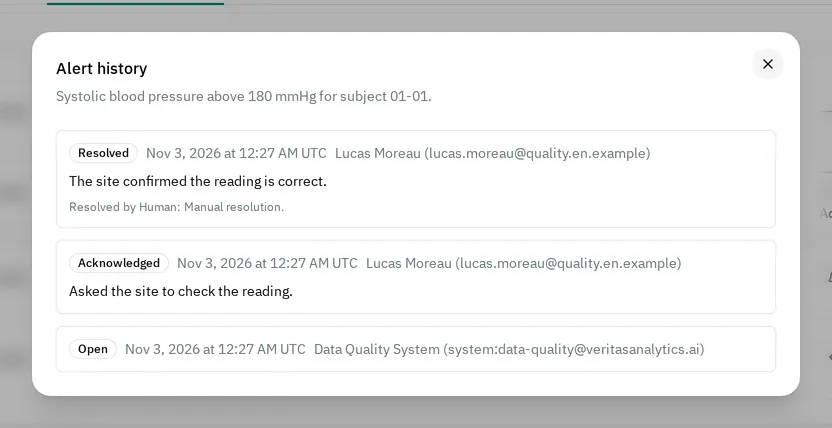
Section titled “See what happened to an alert”Select View history, the clock, on the alert. The Alert history window lists each status of the alert, newest first, with its date, who set it and their comment.
If you cannot handle an alert
Section titled “If you cannot handle an alert”- The study has no Data Quality tab: it does not use Data Quality. A System Administrator turns it on in the admin.
- The alert has no action buttons: your role cannot change alerts, or the study is locked.
- A button is missing: the alert’s status does not allow it. For example, you can only reopen a Resolved alert.
- The Confirm button is disabled: the comment is shorter than the minimum. To suppress an alert, also select a Suppress until date.