Choose how a study handles sign-off, SDV and queries
A few settings in a study’s Study Overview change how the eCRF works for the whole study. They decide whether subjects need a sign-off, when SDV is necessary, and how users answer queries.
Who can do this: System Administrator.
Change a setting
Section titled “Change a setting”-
In the admin, open Studies. Open the study.
-
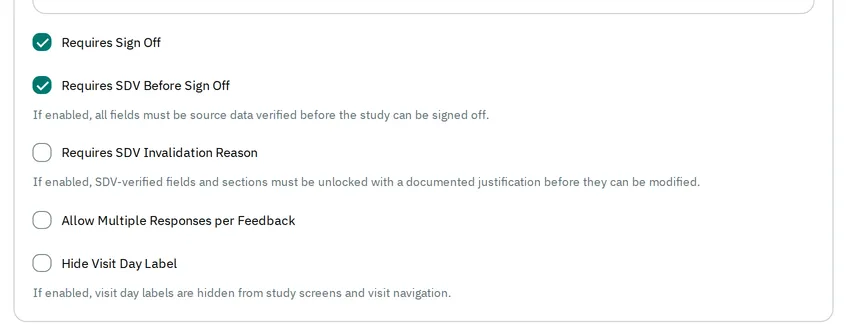
In Study Overview, check or uncheck the setting.
-
Select Publish changes.
The eCRF uses the new setting once you publish it. See Publish a study change to check a change before you publish it.
What each setting does
Section titled “What each setting does”Requires Sign Off
Section titled “Requires Sign Off”The setting Requires Sign Off is checked by default. Each subject then ends with a sign-off: once every visit is completed, a Principal Investigator signs the subject off. The subjects’ list shows a sign-off column. When a user completes the last visit, the eCRF opens the sign-off page if the subject is ready for it. Unchecked, the eCRF has no sign-off step.
Requires SDV Before Sign Off
Section titled “Requires SDV Before Sign Off”The setting Requires SDV Before Sign Off is checked by default. The admin shows it only when Requires Sign Off is checked. A Principal Investigator can sign off a subject only once every visit is completed and every field is source data verified. Until then, the sign-off step shows the message All visits must be marked as completed and source data verification (SDV) must be done for all visits before sign-off is available.
Unchecked, a subject is ready for sign-off once every visit is completed.
Requires SDV Invalidation Reason
Section titled “Requires SDV Invalidation Reason”The setting Requires SDV Invalidation Reason is unchecked by default.
- Checked, a field or section that a monitor has verified is locked. To change it, an investigator first unlocks it with a justification, which the eCRF keeps.
- Unchecked, an investigator can change a verified value directly. The eCRF then removes its verification, and a monitor must verify it again.
Allow Multiple Responses per Feedback
Section titled “Allow Multiple Responses per Feedback”The setting Allow Multiple Responses per Feedback is unchecked by default.
- Unchecked, a query or a comment takes one response: once someone responds, nobody can add another.
- Checked, users can respond several times.
Hide Visit Day Label
Section titled “Hide Visit Day Label”The setting Hide Visit Day Label is unchecked by default. Checked, the eCRF no longer shows the day of each visit, such as Day 28, on the study’s pages and in the visit navigation.
As a Clinical Research Administrator
Section titled “As a Clinical Research Administrator”A Clinical Research Administrator sees these settings grayed out, and cannot change them.
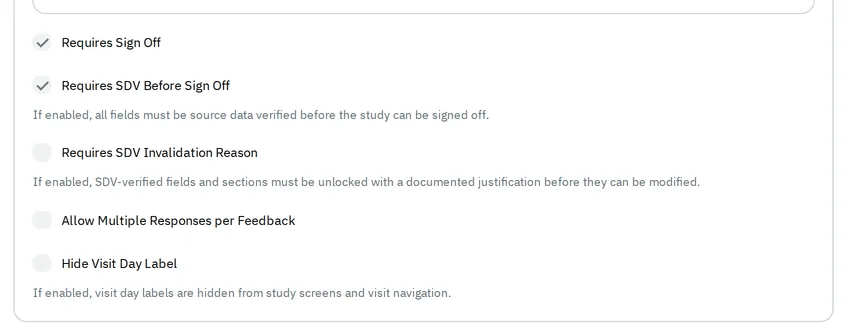
In the studies of their organization, they can change only Planning Start Date, Planning End Date and Facility Sites, then publish. If another administrator’s draft holds changes they cannot make, such as to the protocol, the admin does not publish: see Publish a study change.