Publish a study change
The eCRF always shows the published version of a study. When you change a study in the admin, save the change as a draft. Check the draft. Then publish it. Until you publish it, nobody sees the change in the eCRF.
Who can do this: System Administrator. A Clinical Research Administrator can publish changes to the planning dates and facility sites of their organization’s studies.
Save a draft
Section titled “Save a draft”-
In the admin, open Studies. Open the study.
-
Make your change.
-
Select Save Draft.
The study’s Status becomes Changed. The eCRF still shows the published version.

To drop the draft and return to the published version, select Revert to published next to the status.
Check the draft in Live Preview
Section titled “Check the draft in Live Preview”-
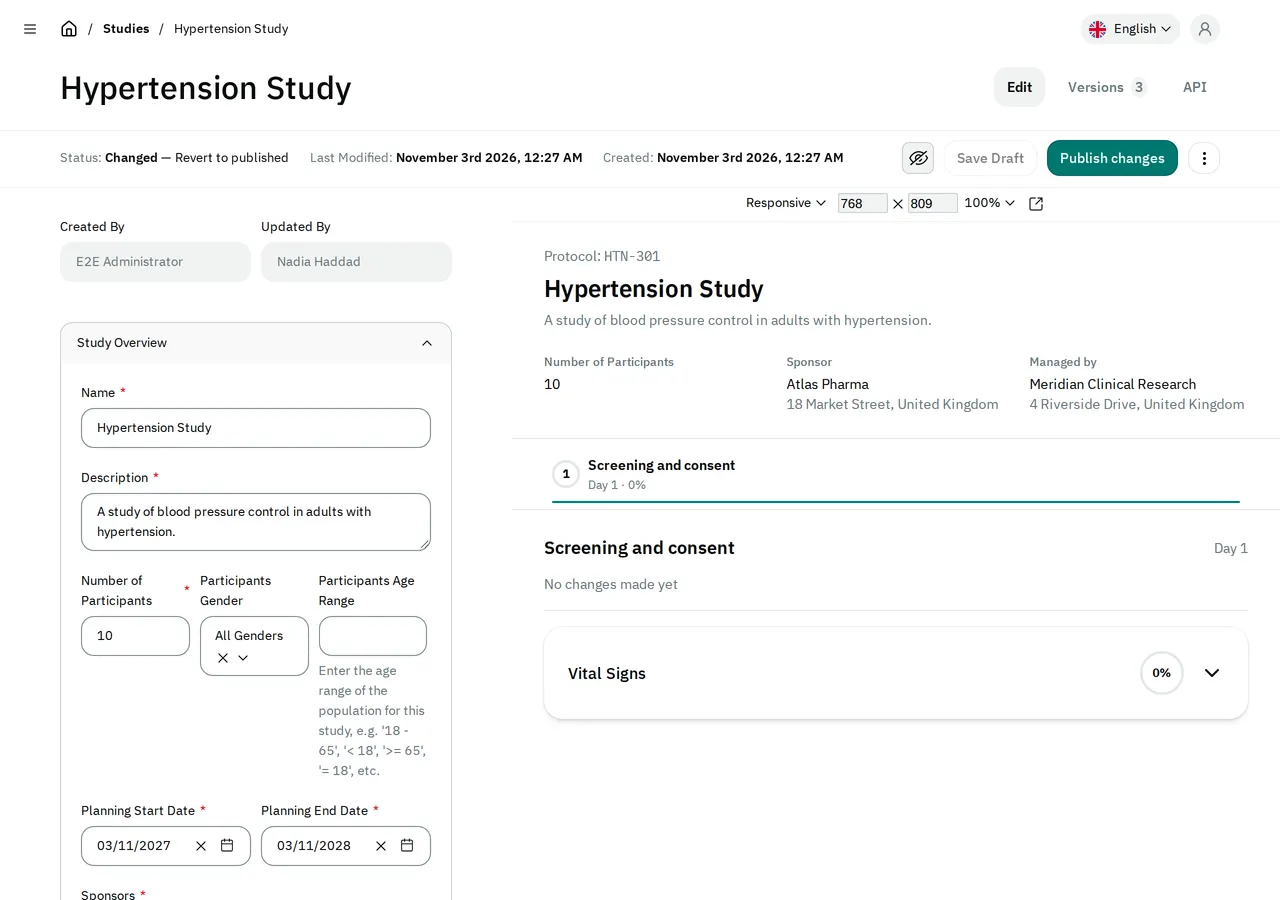
Select the eye button (Live Preview).
The admin shows the study’s first visit next to the form, as the eCRF will show it once you publish the draft. The preview shows your draft, and it does not sign you in to the eCRF.
-
To see a new change in the preview, select Save Draft again.
Publish the change
Section titled “Publish the change”- Select Publish changes.
The study’s Status becomes Published. Users see the new version the next time they open a page of the study, and the list of studies shows its number after Version ID:
If the protocol has a problem, the admin does not publish, and lists each problem. Edit a study’s visits, forms and fields explains them.
The tab Versions, next to the study’s title, lists every version saved so far.
If another administrator’s changes are not published yet
Section titled “If another administrator’s changes are not published yet”When you publish, the admin publishes the whole draft, with the changes that other administrators saved in it. A Clinical Research Administrator cannot publish a draft that holds changes they could not make themselves, such as a change to the protocol. The admin does not publish, and shows Another administrator has unpublished changes that you can't publish. A System Administrator must publish or discard them first.
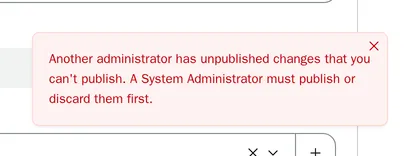
Your change stays in the form, but Save Draft is grayed out until you change a field again. To keep your change, change the field again. Then select Save Draft. Your change joins the draft, and users see it once a System Administrator publishes the draft.
If another administrator is editing the study
Section titled “If another administrator is editing the study”When another administrator has the study open with unsaved changes, the admin shows Document locked.
- Select View read-only to look at the study but not change it.
- Select Take over to edit it yourself. The other administrator can no longer save, and may lose the changes they have not saved.
If the study is locked
Section titled “If the study is locked”While a study is locked, the eCRF still shows the version published before the lock. A change you publish during the lock reaches users once the study is unlocked.