Sign off a subject
When all the data of a subject is entered and checked, the principal investigator signs off the subject’s eCRF. The sign-off confirms that the data is complete, accurate and collected according to the protocol. Only studies that require a sign-off have this step.
Who can do this: Principal Investigator. Other roles can open the sign-off page to see whether a subject is signed off.
Check that the subject is ready
Section titled “Check that the subject is ready”A subject is ready to sign off when all its visits are completed. If your study requires source data verification before the sign-off, a monitor must also verify all the subject’s data.
-
Open the study. Select the Subject Matrix tab.
-
Find the subject’s row. The Sign-Off column shows Ready to sign.

If the column shows Not ready, see Why a subject is not ready.
Sign off the subject
Section titled “Sign off the subject”-
In the subject’s row, select Ready to sign. You can also select the Sign-off step after the subject’s last visit.
-
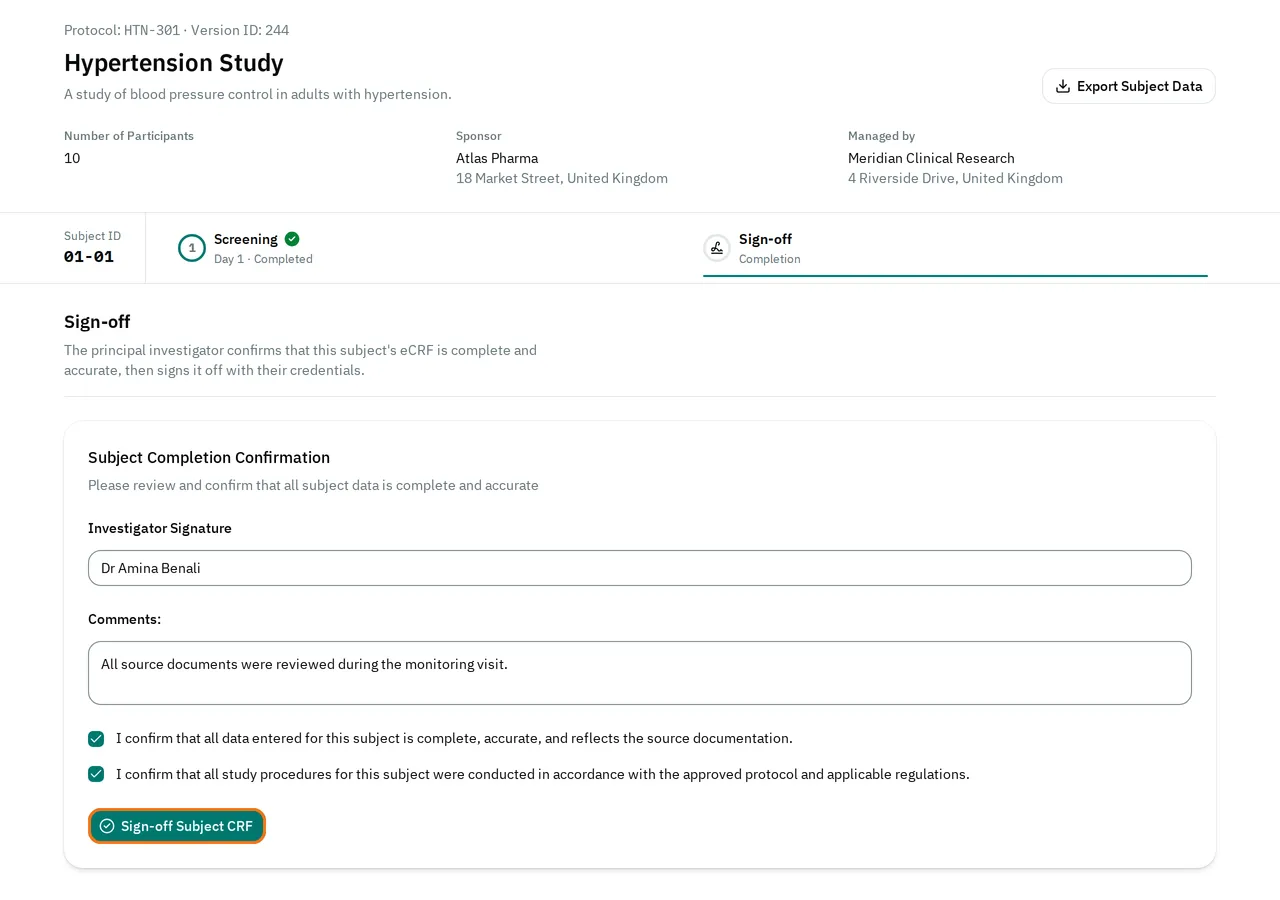
In Investigator Signature, type your full name.
-
In Comments:, type your final comments, if you have any.
-
Check I confirm that all data entered for this subject is complete, accurate, and reflects the source documentation.
-
Check I confirm that all study procedures for this subject were conducted in accordance with the approved protocol and applicable regulations.
-
Select Sign-off Subject CRF. The button stays disabled until you type your signature and check both boxes.
-
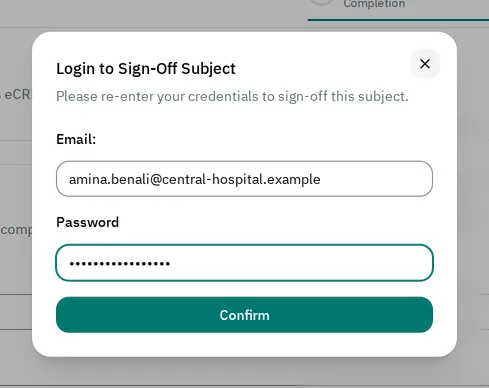
In the Login to Sign-Off Subject window, type the email and password you sign in with.
-
Select Confirm.
The eCRF signs off the subject, shows Signed-Off Subject and opens the Subject Matrix. The subject’s row shows Signed.

See who signed off a subject
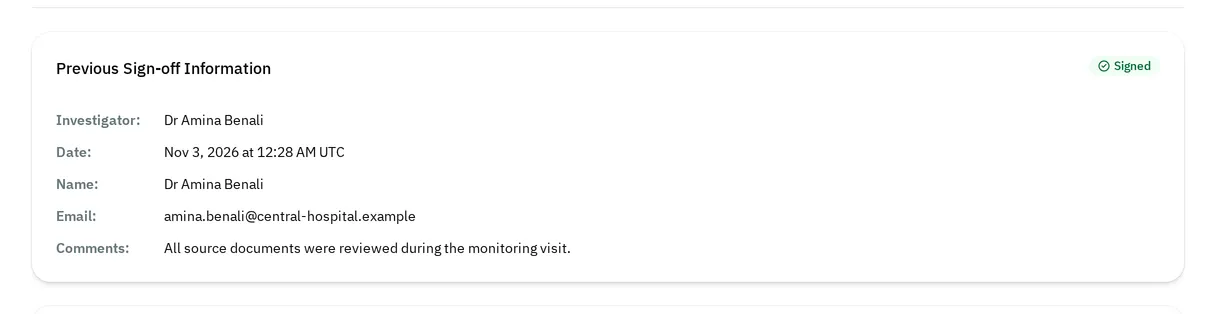
Section titled “See who signed off a subject”In the subject’s row, select Signed. The sign-off page shows Previous Sign-off Information, with the signature, the date, the name and email of the investigator, and the comments.
To change a visit of a signed-off subject, set the visit back to In Progress first. This cancels the sign-off. See Complete a visit or set it back to In Progress. When all the visits are completed again, the sign-off page shows Unsigned and the reason under Reason for unsigned status:. Sign off the subject again.
Why a subject is not ready
Section titled “Why a subject is not ready”Point to Not ready in the subject’s row to see why.

- It says All visits must be completed before this subject can be signed-off. Complete the subject’s visits. See Complete a visit or set it back to In Progress.
- It says Source data verification (SDV) must reach 100% before this subject can be signed off. Ask the Clinical Research Associate who monitors the study to verify the subject’s data. See Verify source data.
Until the subject is ready, the Sign-off step after the last visit is disabled. If you open the sign-off page of a subject that is not ready, the eCRF opens the list of studies instead. This can happen, for example, when you follow a link.
If you cannot sign off
Section titled “If you cannot sign off”-
The sign-off page shows This subject hasn't been signed off. Your role can't sign off a subject's eCRF: only the principal investigator can. Let them know this eCRF is complete so they can review and sign it off. Only the Principal Investigator can sign off.

-
The sign-off page shows This subject hasn't been signed off, and you can't sign it off while the form is locked. The study is locked. Nobody can sign off until a Data Manager or an administrator unlocks it.
-
The window shows Email must match the logged-in user. Type the email of the account you are signed in with.
-
The window shows The email or password is incorrect. Check your email and password. Then try again.
-
The window shows Too many failed attempts. Try again later. After 5 failed attempts in a row, here or on the sign-in page, the eCRF locks your account for 10 minutes. See If your account is locked.
-
The window shows Resolve the calculated-field and validation errors before continuing this workflow., or a message about a field. A value in the subject’s data is not valid. Set the visit back to In Progress. Correct the value. Complete the visit again.