Select a study
After you sign in, the eCRF lists the studies you can work on. Open a study to see its overview, its subjects and their visits.
Who can do this: every user, whatever their role.
Open a study
Section titled “Open a study”-
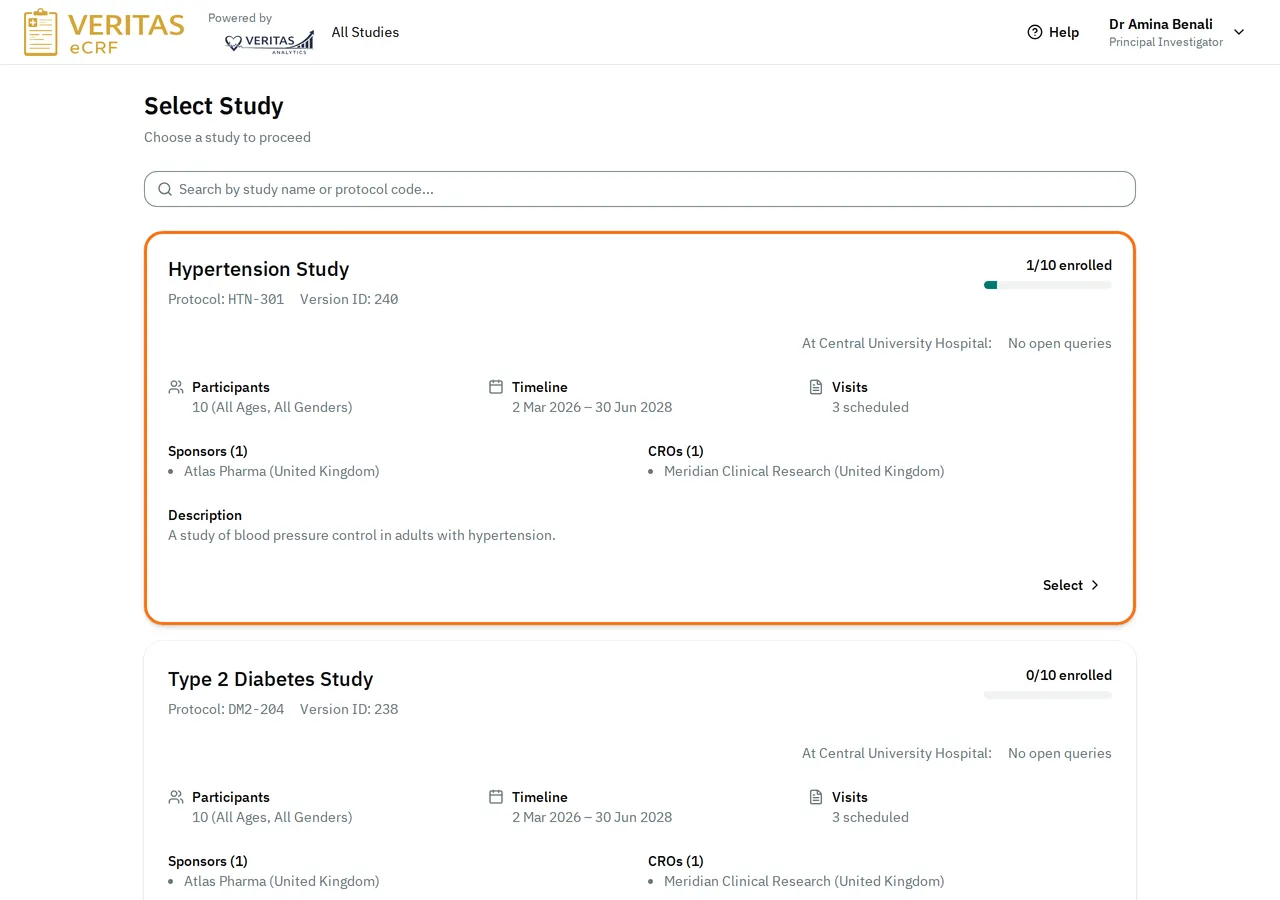
Sign in. The eCRF opens Select Study.
-
Select the card of the study.
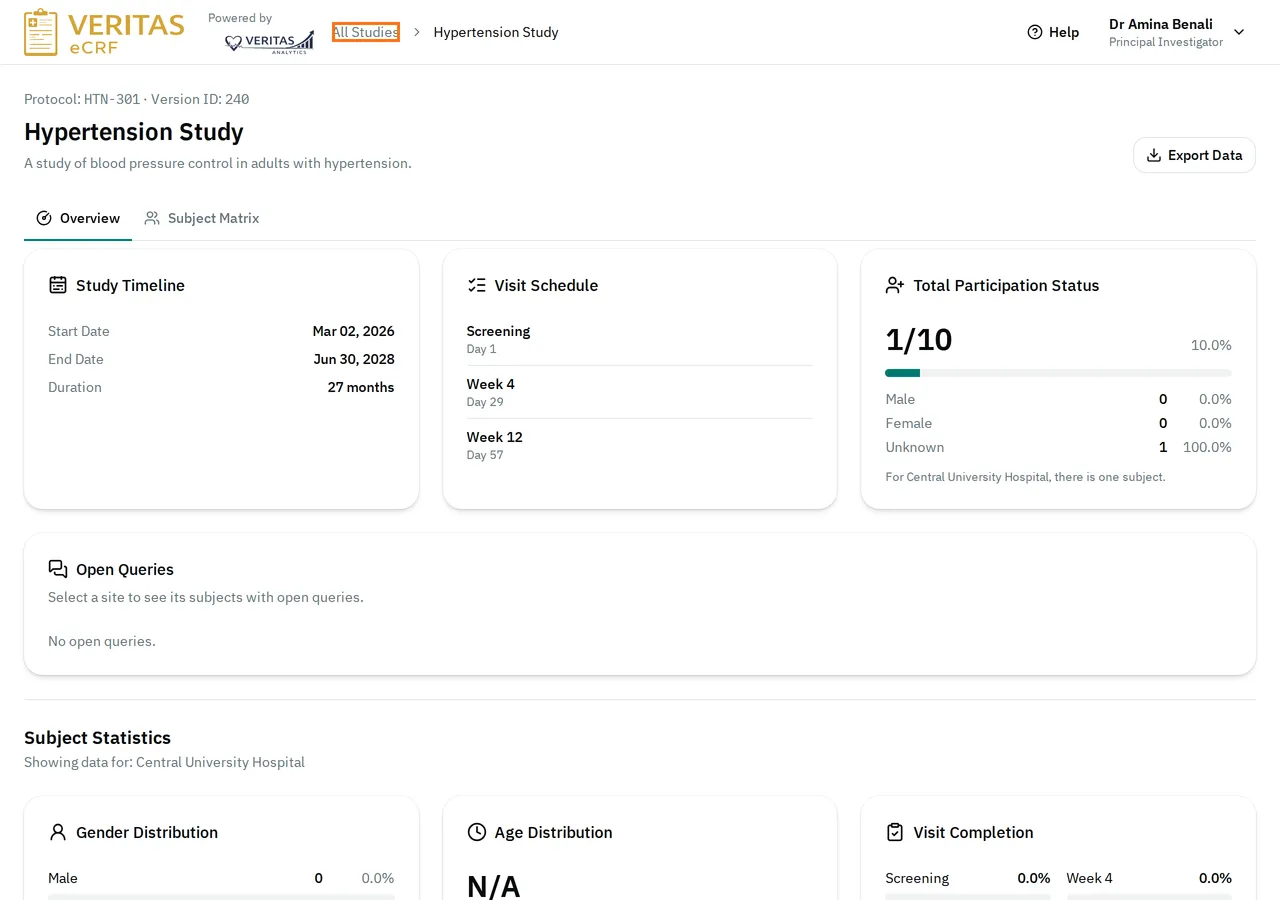
The eCRF opens the Overview tab of the study. To come back to the list of studies, select All Studies at the top of the page.
Find a study
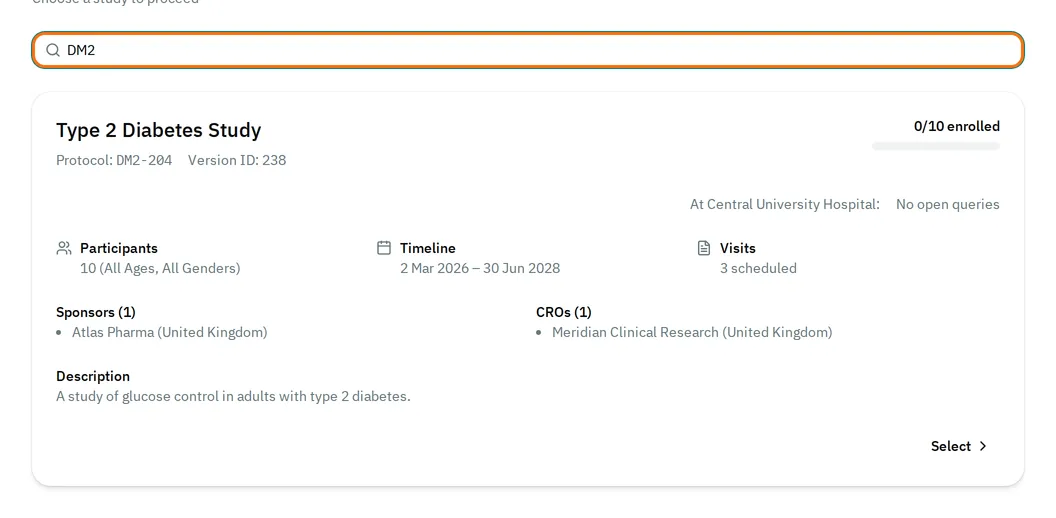
Section titled “Find a study”When you have many studies, type part of the study name or of its protocol code in the search box. The list shows only the studies that match.
What a study card shows
Section titled “What a study card shows”The top of each card shows:
- the name of the study, its protocol code and the identifier of its version, after Version ID:;
- how many subjects are enrolled out of the number the study plans, for example 1/10 enrolled;
- how many queries are still open, and how many answered queries need a review;
- how many critical Data Quality alerts are open, if the study uses Data Quality.
If your account belongs to a facility site, these numbers count only the subjects of your site. The card then starts them with At …:.

If a study is missing
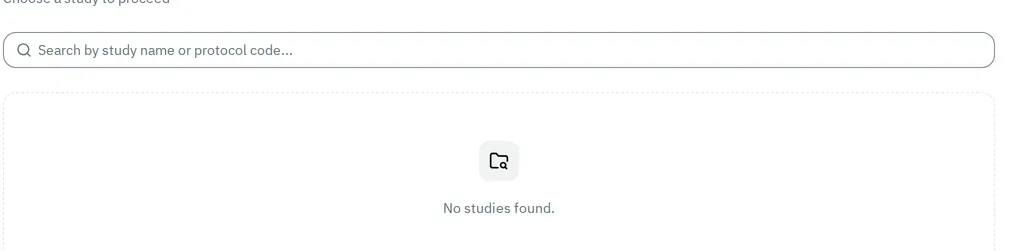
Section titled “If a study is missing”When you have no study, the list shows No studies found.
The list shows a study only when all of these are true:
- The study is published. A study that is still in preparation does not appear.
- The study belongs to your organization: your CRO, or your sponsor if your role is Sponsor.
- The study includes your facility site, if your account has one.
- The study is one of your assigned studies, if your role is Principal Investigator, Sub-Investigator, Clinical Research Associate (Hospital) or Sponsor.
To see your role, your organization and your facility site, select your name at the top right. If a study you need is missing, ask your administrator to check these settings.