Verify source data
Source data verification (SDV) confirms that the data of a visit matches the subject’s source documents. Mark each field or section as verified once you have checked it.
Who can do this: Clinical Research Associate.
Open the visit
Section titled “Open the visit”-
On the Subject Matrix tab, select the subject.
-
Select the visit to verify in the list of visits.
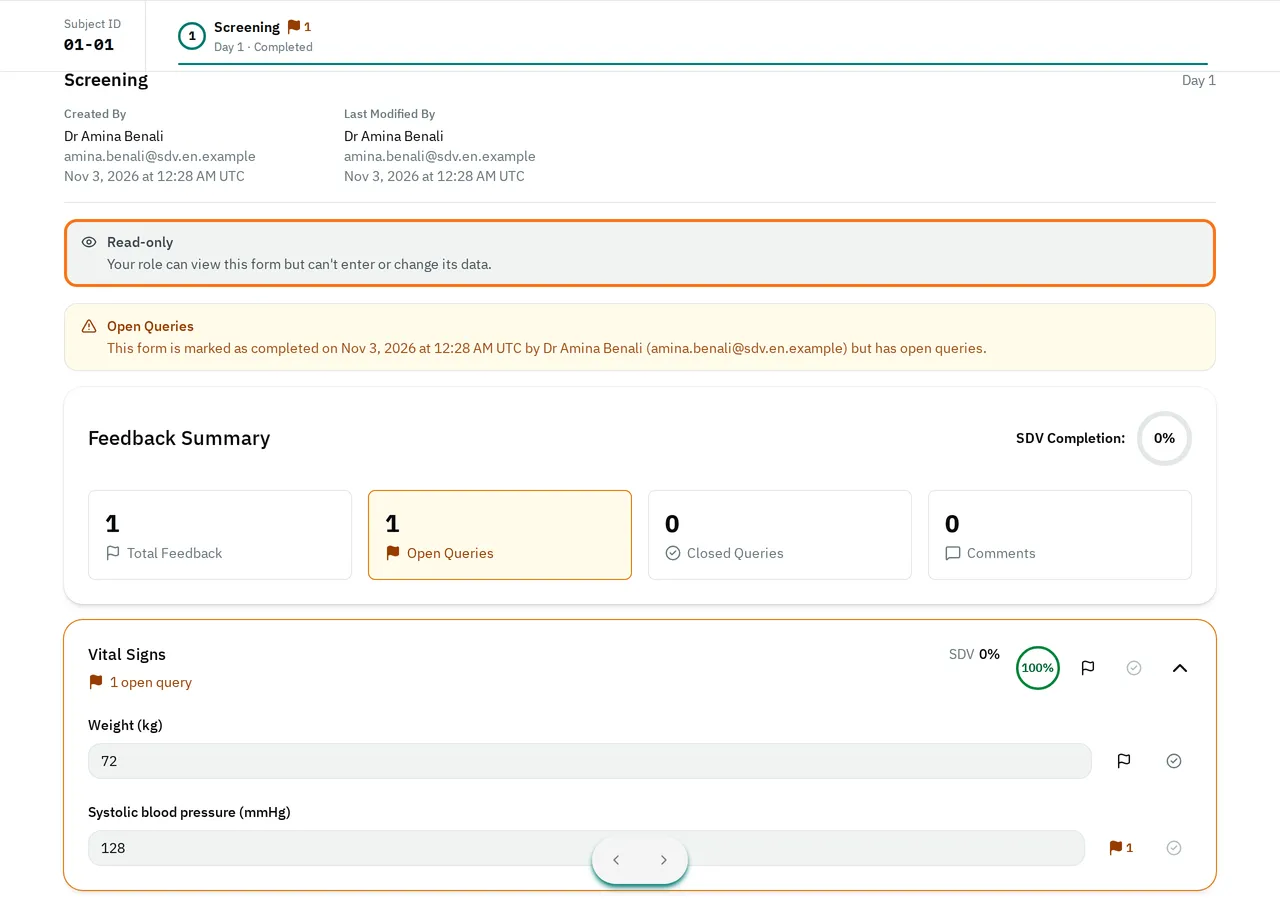
The visit shows Read-only at the top, because your role cannot change visit data. You can still verify the data and raise queries.
Verify a field
Section titled “Verify a field”-
Compare the value of the field with the source document.
-
Next to the field, select the circle with a check mark (Mark as Verified).

The check mark turns green. Point to it to see who verified the field and when.
Verify a whole section
Section titled “Verify a whole section”-
Compare every field of the section with the source document.
-
On the section’s header, select the circle with a check mark (Mark as Verified).
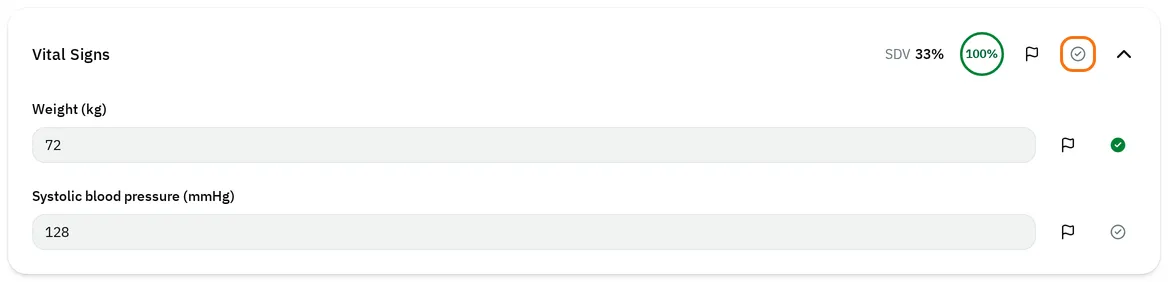
The eCRF marks the section and every field in it as verified.
Unmark a field or a section
Section titled “Unmark a field or a section”Select the green check mark (Unmark as Verified).
- When you unmark a field, the eCRF also unmarks the sections that contain it.
- When you unmark a section, the eCRF also unmarks every field in it.
If an investigator changes a verified value and saves the visit, the eCRF removes its verification, and you verify it again. See Correct source-verified data.
Follow SDV completion
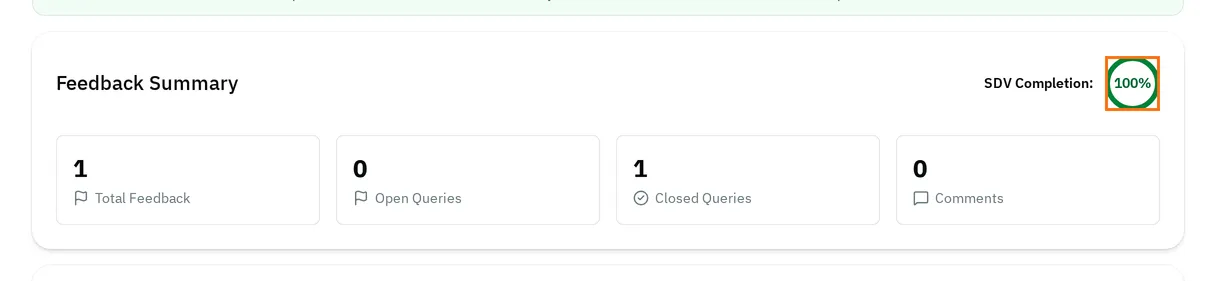
Section titled “Follow SDV completion”In a visit, the Feedback Summary card shows SDV Completion: the share of the visit’s fields and sections that are verified.
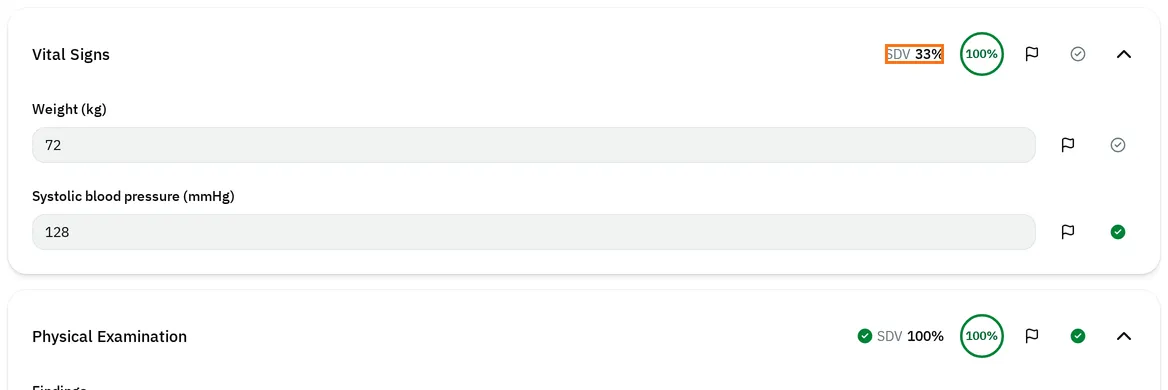
The header of each section shows SDV with the share of the section and its fields that are verified. At 100%, it also shows a green check mark. Use it to find the sections that you must still verify.
On the Subject Matrix tab:
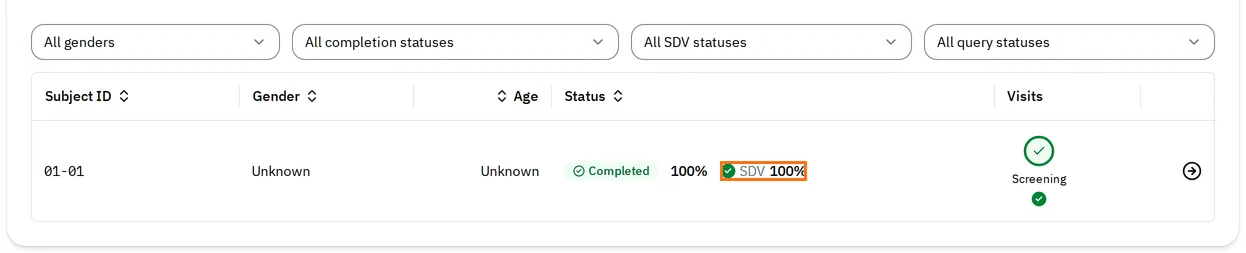
- Each subject shows SDV with the average completion of its visits, and a green check mark at 100%.
- Each visit shows a green check mark once it is fully verified. Point to a visit to see, for example, SDV Completion: 60%.
- To find the subjects left to verify, select SDV Incomplete in the All SDV statuses filter.
If your study requires it, the Principal Investigator can sign off a subject only once its SDV reaches 100%.
If you cannot verify
Section titled “If you cannot verify”-
The circle is grayed out, and when you point to it, the eCRF shows Close the open queries on this field and on the fields and sections that contain it before performing SDV.. A query that has a response stays open until someone closes it. Close the query. Then verify the field.

-
The eCRF shows SDV Status Update Failed and This field has validation errors. These must be resolved before performing SDV. Ask the investigator to correct the value.
-
When you point to the circle, the eCRF shows You can't perform SDV while the form is locked. The study is locked.
-
When you point to the circle, the eCRF shows Your role can't perform SDV. Only the Clinical Research Associate verifies source data.