Record a concomitant medication
Record each medication that the subject takes during the study. A medication goes from Draft to Finalized, Submitted and Closed. To change a submitted medication, you amend it.
Who can do this:
- To record medications, save drafts, finalize them, and start or abandon amendments: Principal Investigator, Sub-Investigator and Clinical Research Associate (Hospital).
- To submit and close a medication: only the Principal Investigator.
- Other roles see submitted medications, but cannot change them.
Record a medication
Section titled “Record a medication”-
Open the visit of the subject.
-
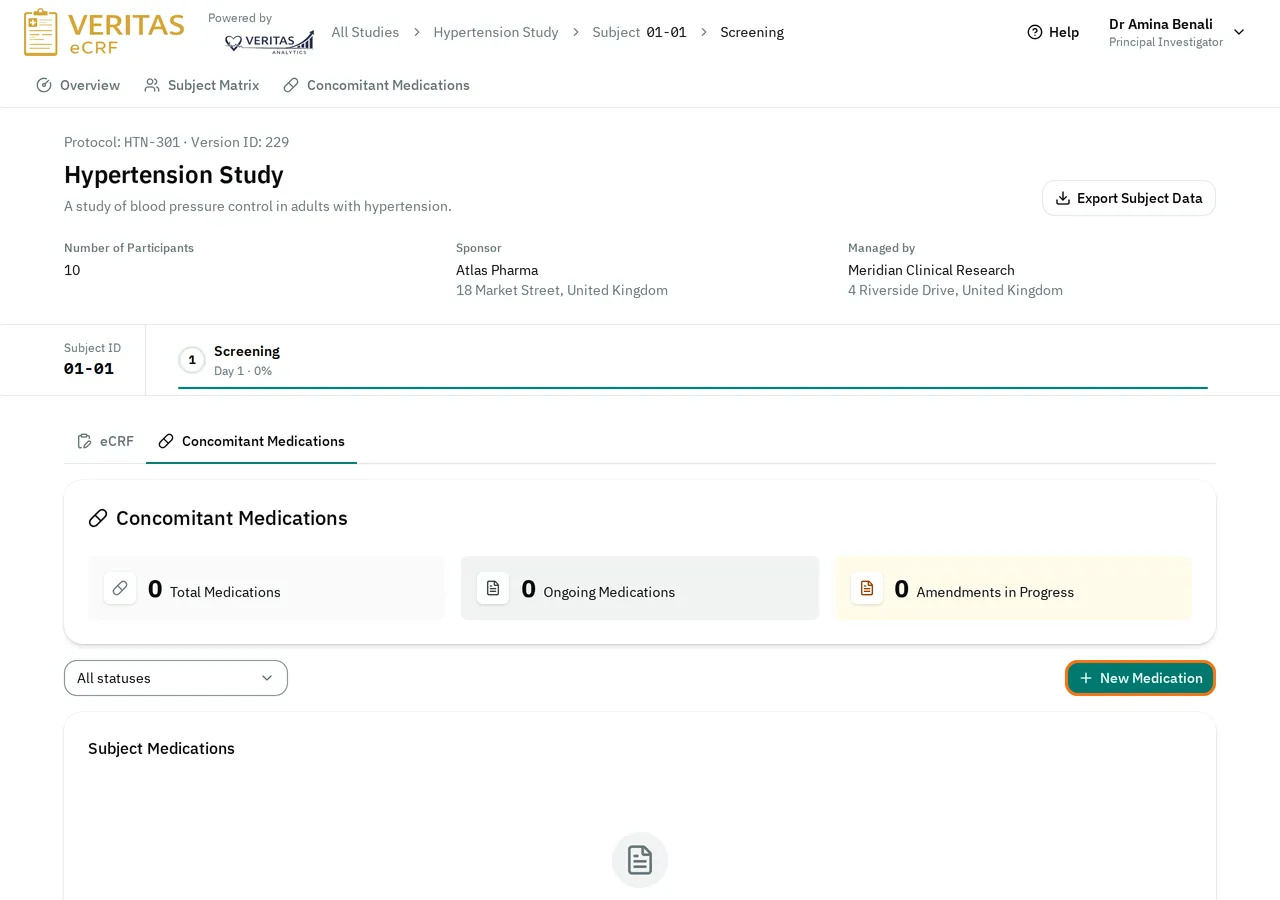
Select the Concomitant Medications tab. A visit without this tab does not record medications.
-
Select New Medication.
-
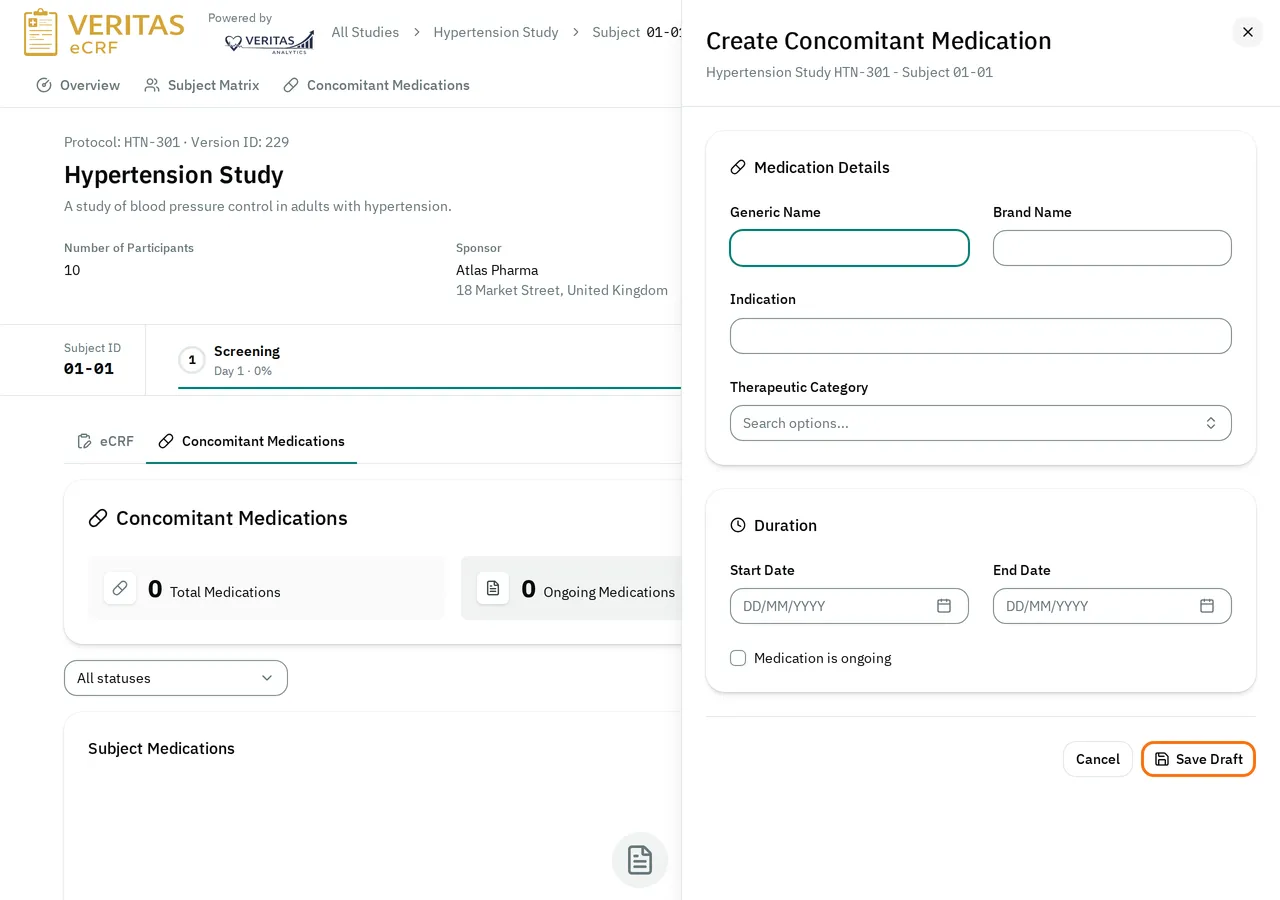
Fill in the form. Its fields depend on your study.
-
If the subject still takes the medication, check Medication is ongoing. Otherwise, enter the End Date.
-
Select Save Draft.
The medication appears in the list as Draft.
Finalize and submit a medication
Section titled “Finalize and submit a medication”-
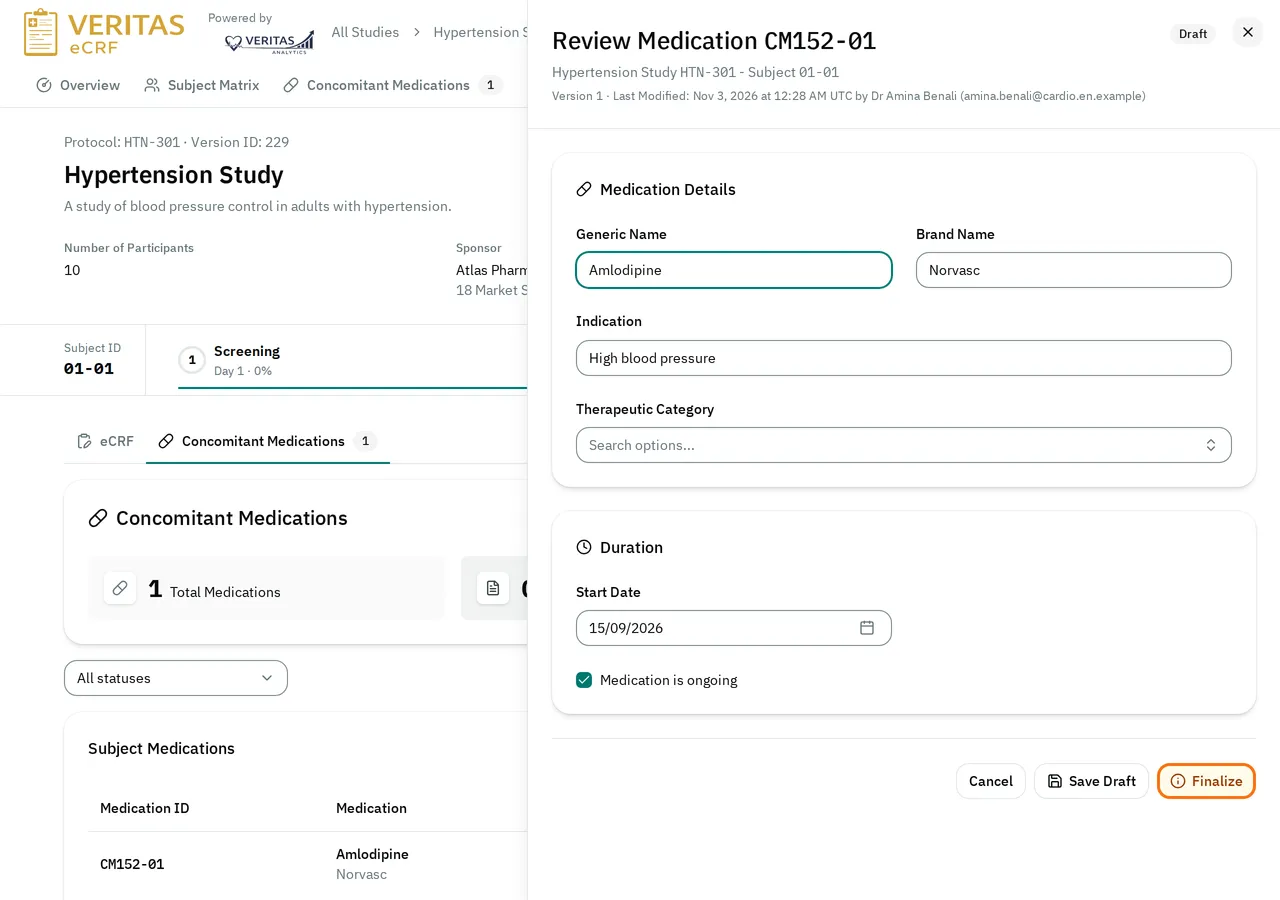
In the list, select the pencil button (Edit amendment) next to the medication.
-
Check the data. Select Finalize. Nobody can change a finalized medication.
-
Select the pencil button again.
-
Select Submit.
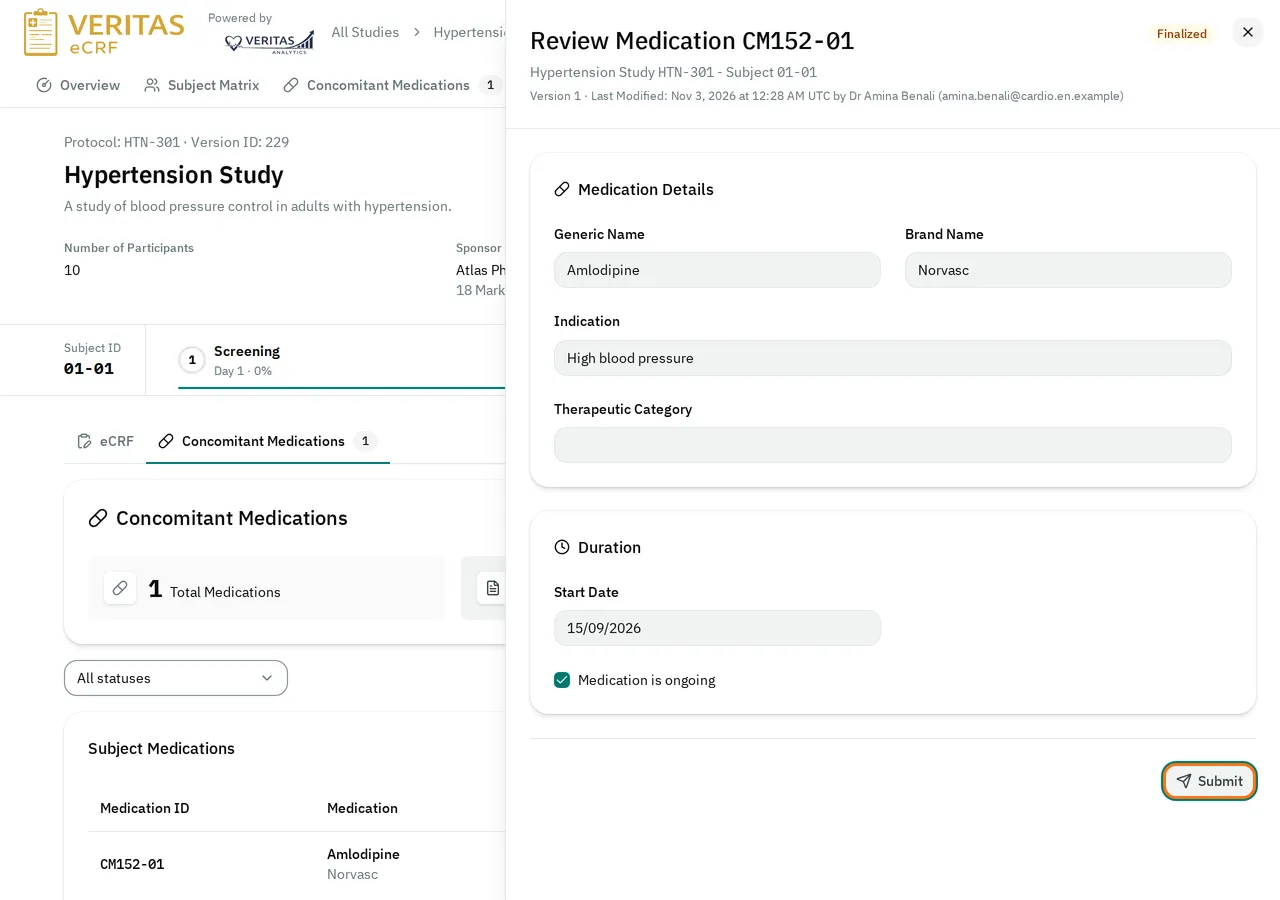
The submitted medication is the live version. To open it, select the eye button (Inspect live).

If the medication cannot be finalized
Section titled “If the medication cannot be finalized”If a required field is empty, the eCRF does not finalize the medication. It shows Medication cannot be finalized and shows the fields to correct in red. Correct them. Then select Finalize again.
Amend a submitted medication
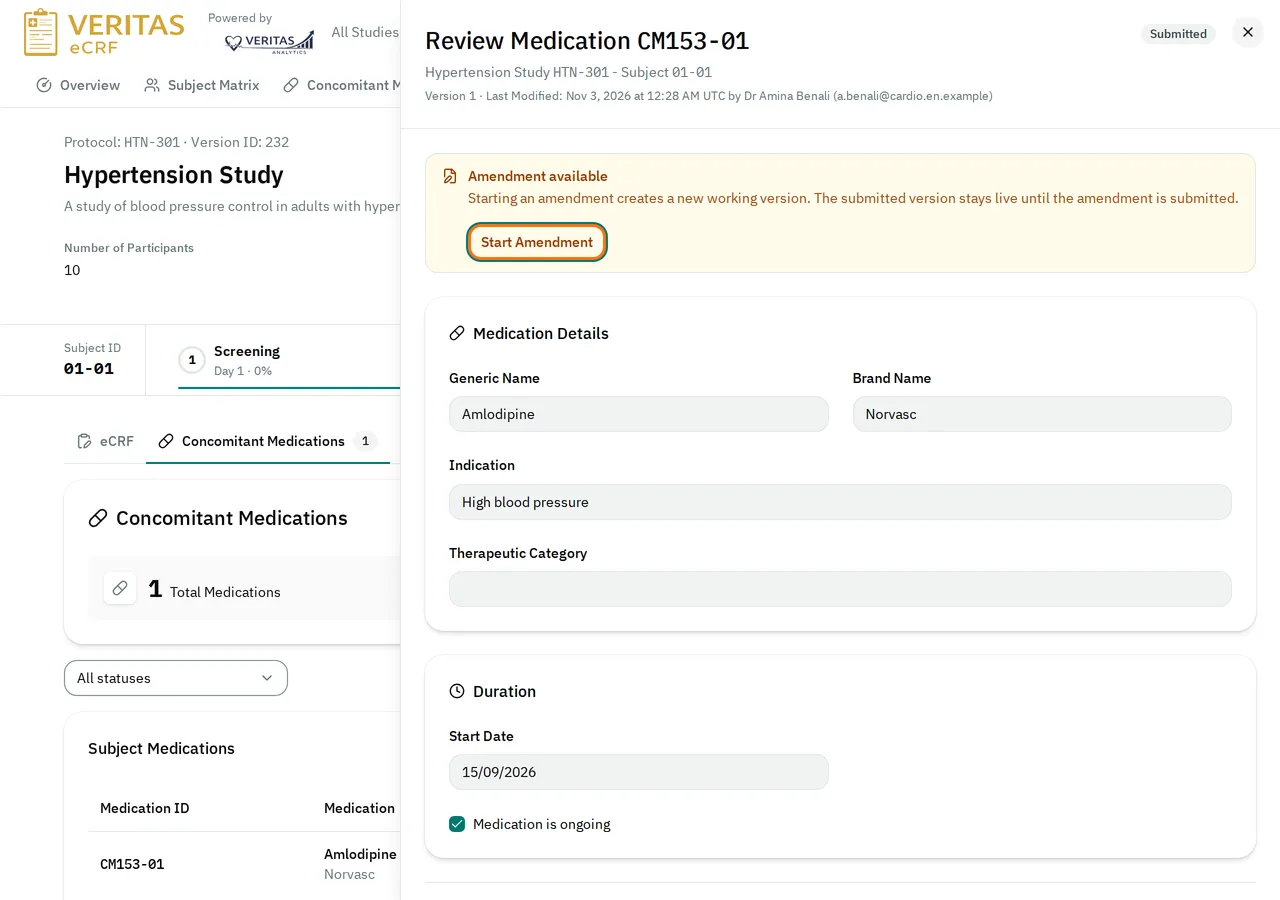
Section titled “Amend a submitted medication”You cannot change a submitted medication directly. An amendment creates a new working version of it. The submitted version stays live until you submit the amendment.
-
Select the eye button (Inspect live) next to the medication.
-
Select Start Amendment.
-
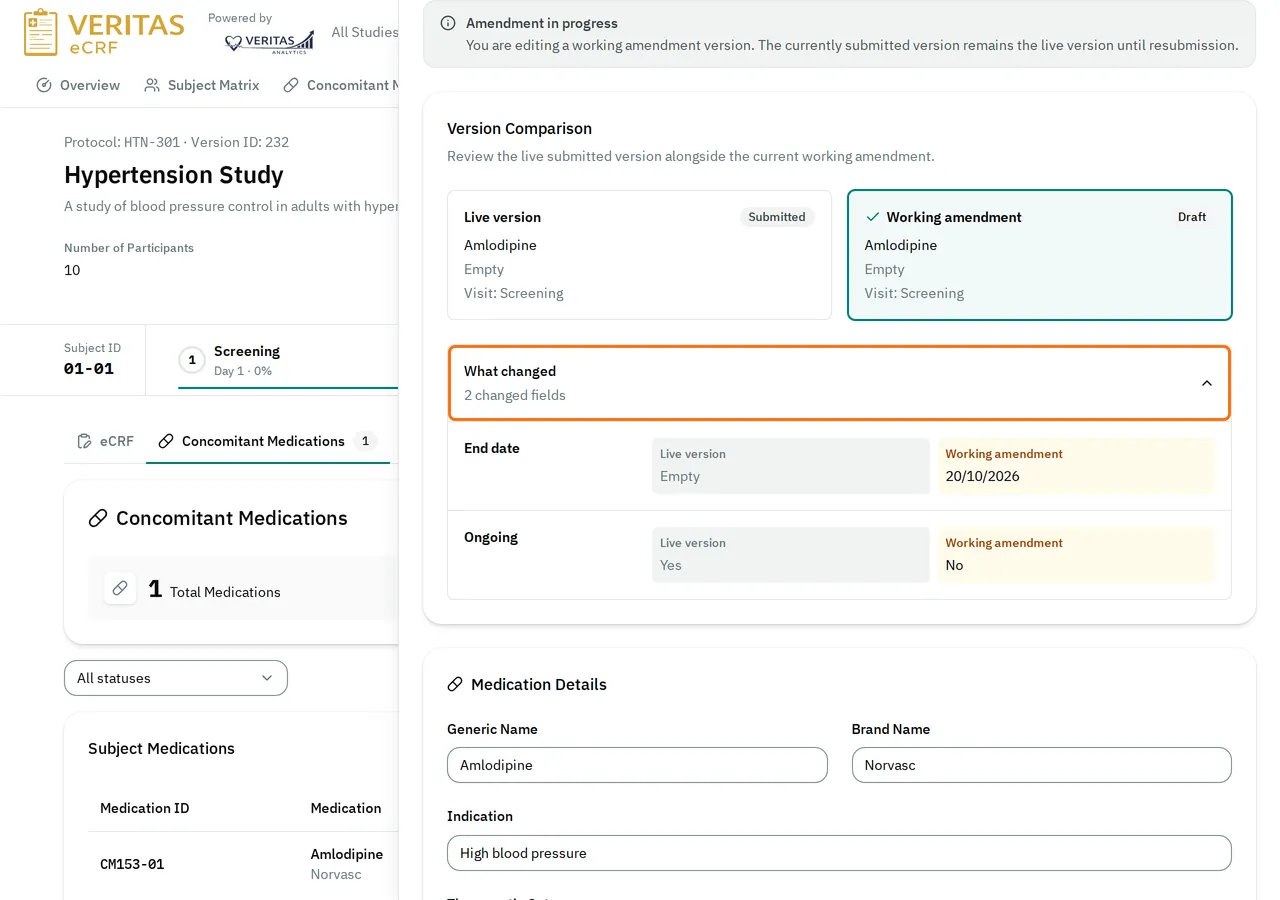
Change the fields.
The What changed box compares your changes with the live version.
-
Select Save Draft.
-
Finalize and submit the amendment.
To continue an amendment later, select the pencil button (Edit amendment).
Abandon an amendment
Section titled “Abandon an amendment”-
Open the amendment with the pencil button.
-
Select Abandon Amendment.
-
Select Abandon amendment to confirm.
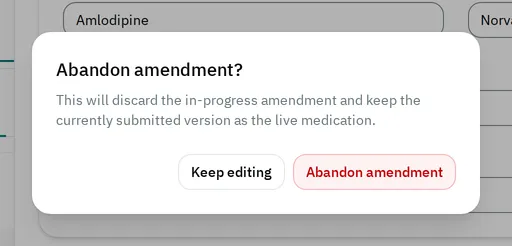
The eCRF discards the amendment, and the submitted version stays live.
Close a medication
Section titled “Close a medication”Close a medication when the subject no longer takes it. You can close a submitted medication that has an end date.
-
If the medication is ongoing, amend it. In the amendment, uncheck Medication is ongoing. Enter the End Date. Submit the amendment.
-
Select the eye button (Inspect live).
-
Select Close Medication.
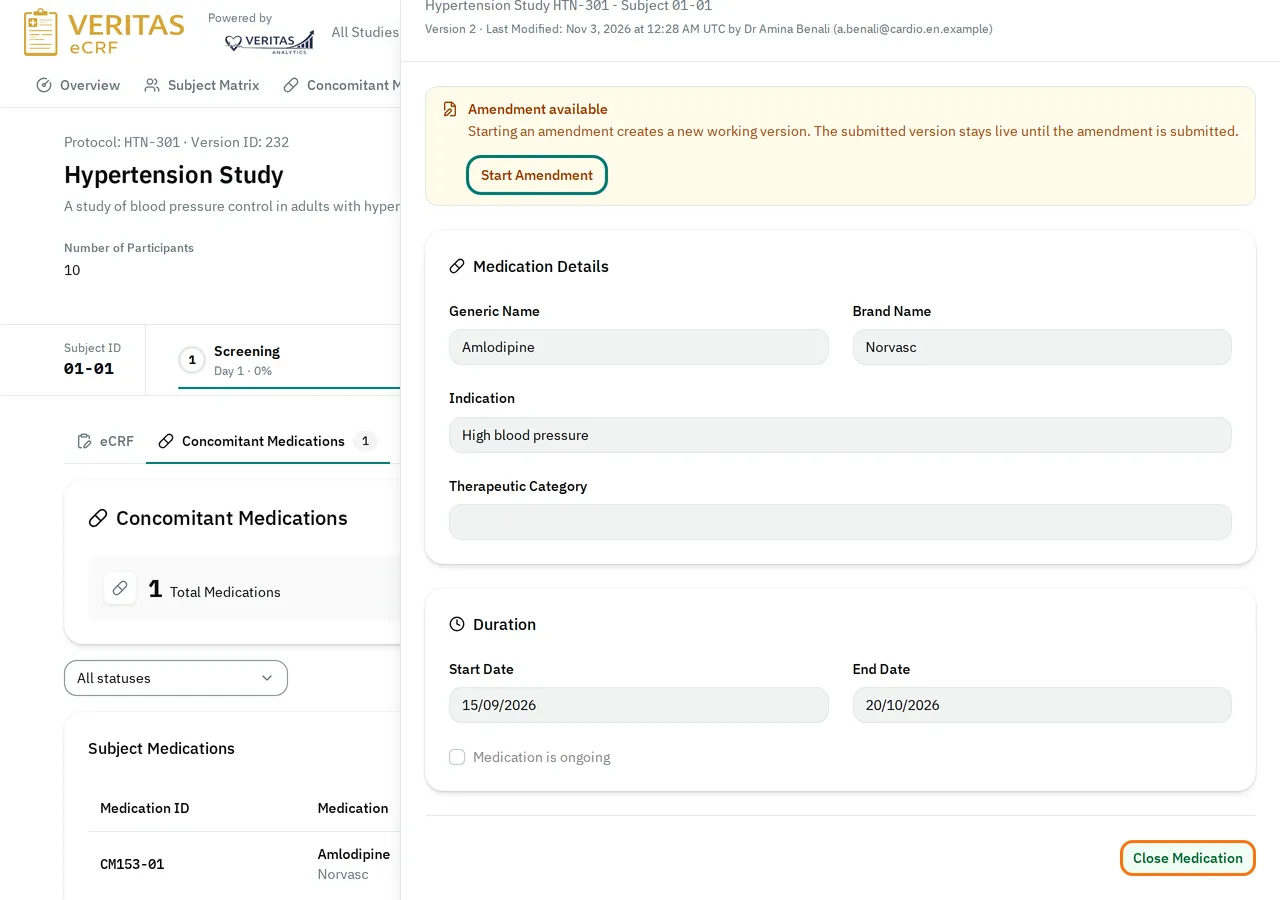
You cannot amend a closed medication. Medications have no status override, so a closed medication stays closed.
If you cannot record or change a medication
Section titled “If you cannot record or change a medication”- The form shows Your role can't make these changes. Your role cannot record medications.
- You see no Submit or Close Medication button: only the Principal Investigator can use them.
- You see no Close Medication button: the medication is ongoing. Amend it with an end date first.
- When you close the medication, the eCRF shows Status Update Failed: the medication has an amendment in progress. Submit or abandon the amendment. Then close the medication.
- When you close the medication, the eCRF shows This medication can't be closed without an end date. Your study’s medication form has no end date. Contact your administrator.
- The form shows You can't make changes while the form is locked. The study is locked. Nobody can change its data until a Data Manager or an administrator unlocks it.