Lock or unlock a study
Lock a study when its data is final, for example for the database lock. A locked study is read-only for every user. To make an authorized correction, unlock the study. After the correction, lock it again.
Who can do this: Data Manager, Clinical Research Administrator and System Administrator.
Lock a study
Section titled “Lock a study”-
Open the study.
-
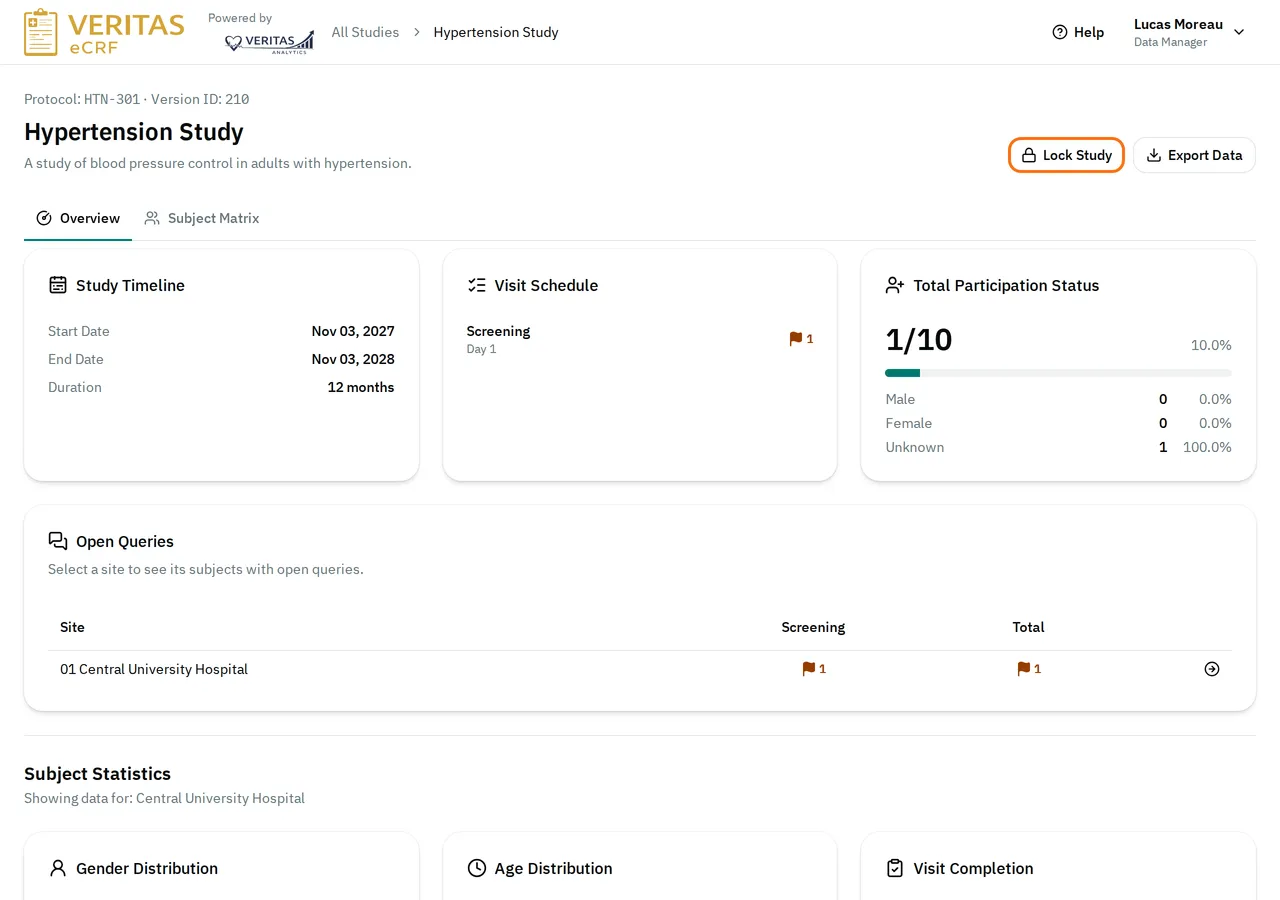
At the top right, select Lock Study.
-
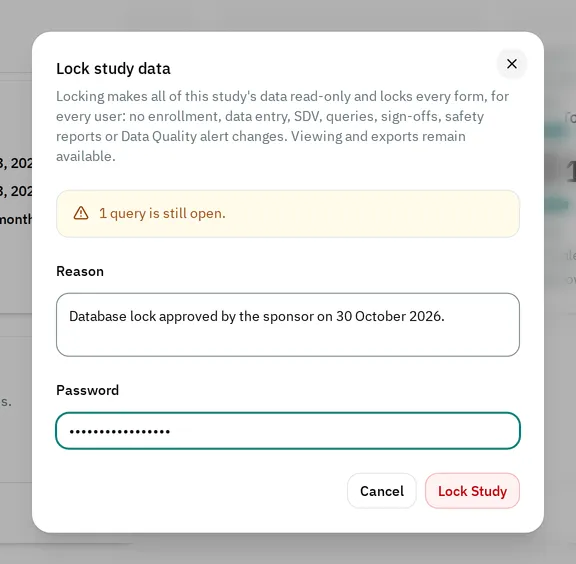
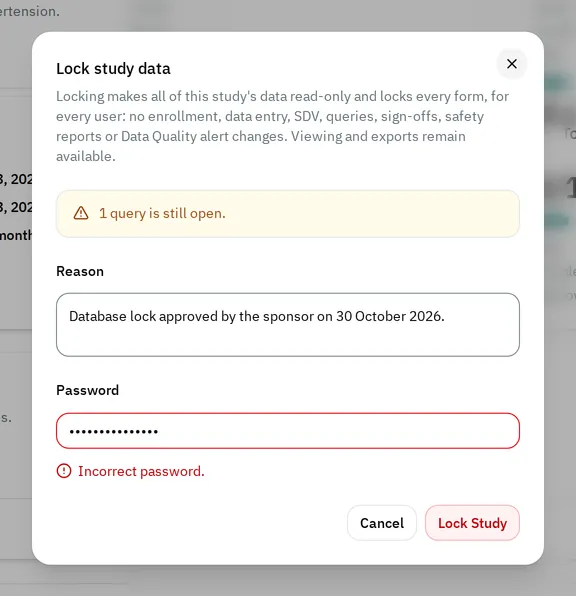
Read the warning in the window. If queries are still open, it says how many, for example 1 query is still open. You can still lock the study.
-
In Reason, type why you lock the study and who authorized it. The reason needs at least 10 characters.
-
In Password, type the password you sign in with.
-
Select Lock Study.
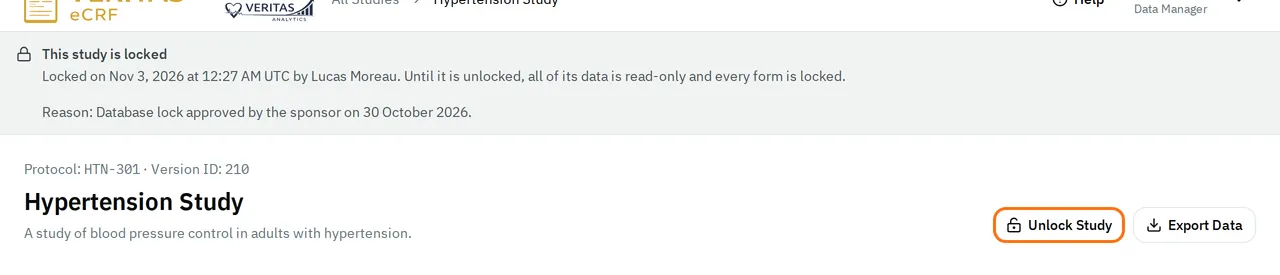
The study shows This study is locked at the top of its pages, with the date, who locked it and the reason.
What a locked study allows
Section titled “What a locked study allows”While the study is locked, nobody can change its data. Nobody can add subjects, enter data, verify source data, raise or answer queries, sign off, report safety events or change Data Quality alerts. Each visit shows Locked: This form is locked because the study is locked.

Everyone can still read the data, and you can still export it.
The study keeps the version it had when the lock started. If an administrator publishes a new version of the study in the admin, the eCRF shows it only once the study is unlocked.
Unlock a study
Section titled “Unlock a study”-
Open the study.
-
At the top right, select Unlock Study.
-
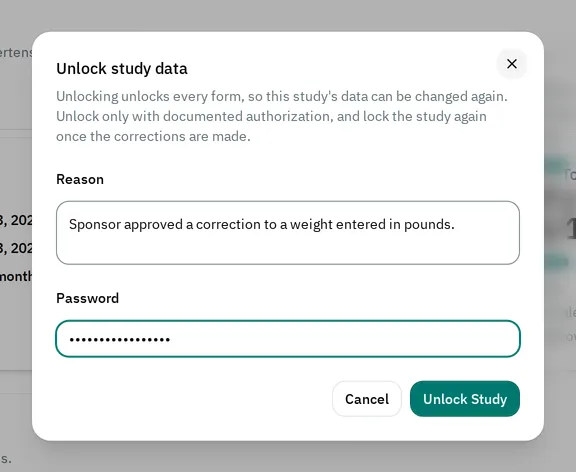
In Reason, type why you unlock the study and who authorized it.
-
In Password, type your password.
-
Select Unlock Study.
The banner goes away, and users can change the data again. Lock the study again after the corrections.
If you cannot lock or unlock the study
Section titled “If you cannot lock or unlock the study”-
You see no Lock Study button: your role cannot lock a study.
-
The button in the window is disabled: the reason is shorter than 10 characters, or the password is empty.
-
The window shows Incorrect password. Type the password again.
-
The window shows Too many failed attempts. Try again later. Each wrong password counts as a failed sign-in. After 5 failed attempts in a row, the eCRF locks your account for 10 minutes. See If your account is locked.
-
The eCRF shows This study is already locked. or This study is already unlocked. Someone else locked or unlocked the study at the same time, and the page now shows it.