Complete a visit or set it back to In Progress
When you have entered all the data of a visit, mark the visit as completed. A completed visit is read-only. To change its data, set the visit back to In Progress.
Who can do this: Principal Investigator, Sub-Investigator and Clinical Research Associate (Hospital). Other roles can open a visit, but they cannot change its status.
Mark a visit as completed
Section titled “Mark a visit as completed”-
Open the visit of the subject.
-
Enter the visit data. Fill in all the required fields.
-
At the bottom of the page, select the status button. It shows the name of the visit, for example Screening In Progress.
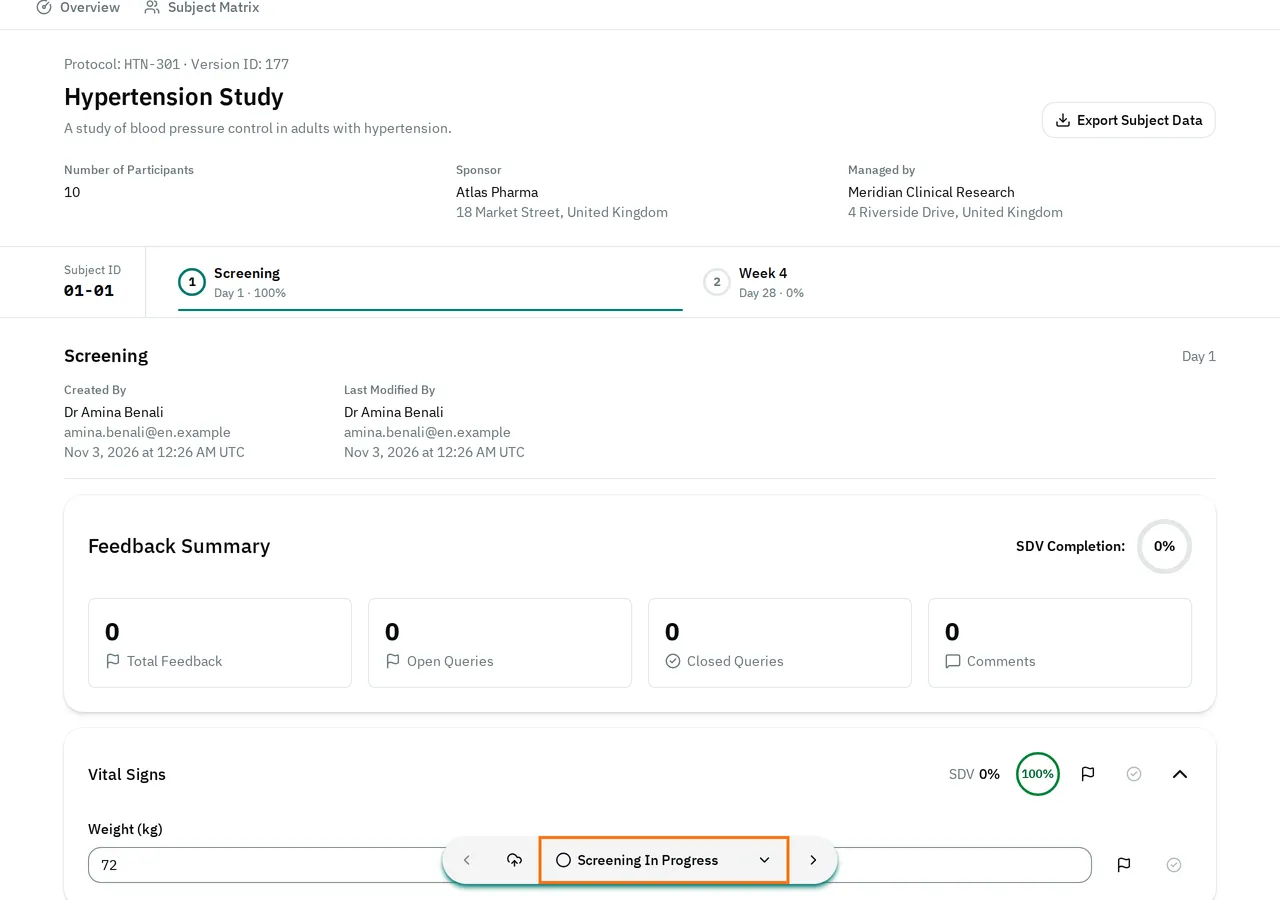
-
Select Mark Screening as Completed.
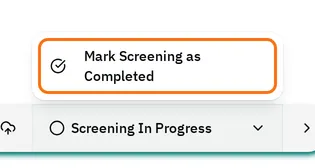
The eCRF saves the visit as completed and opens the next visit. After the last visit, it opens the sign-off page if your study requires a sign-off and all the visits are completed.
If the visit cannot be completed
Section titled “If the visit cannot be completed”If a required field is empty, or a value is not correct, the eCRF does not complete the visit. It shows the message Visit 1 failed to mark as complete. Please check for validation errors. and shows the fields to correct in red.
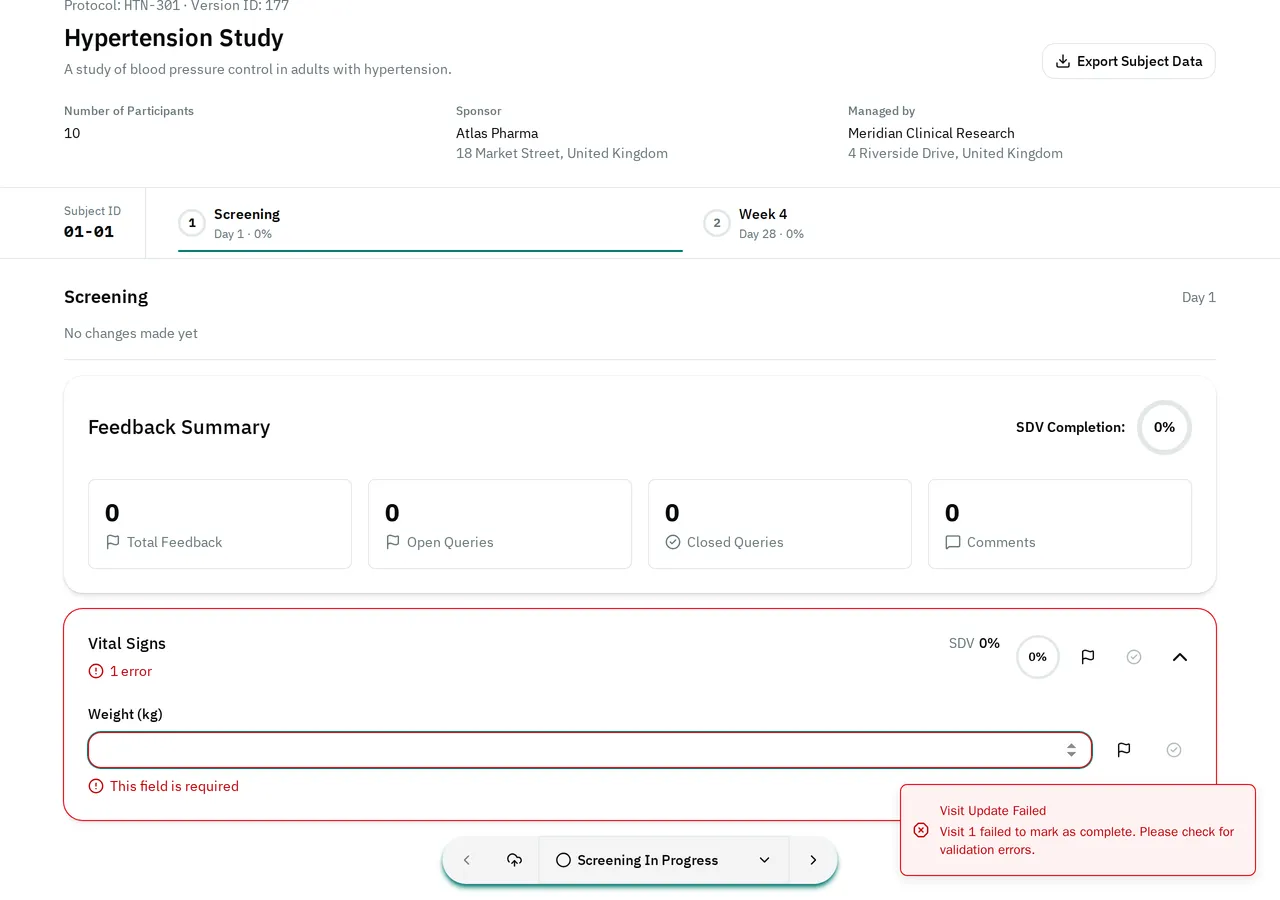
Correct the fields. Then mark the visit as completed again.
Change a completed visit
Section titled “Change a completed visit”A completed visit shows the message Completed at the top, and you cannot change its fields. Set the visit back to In Progress first.
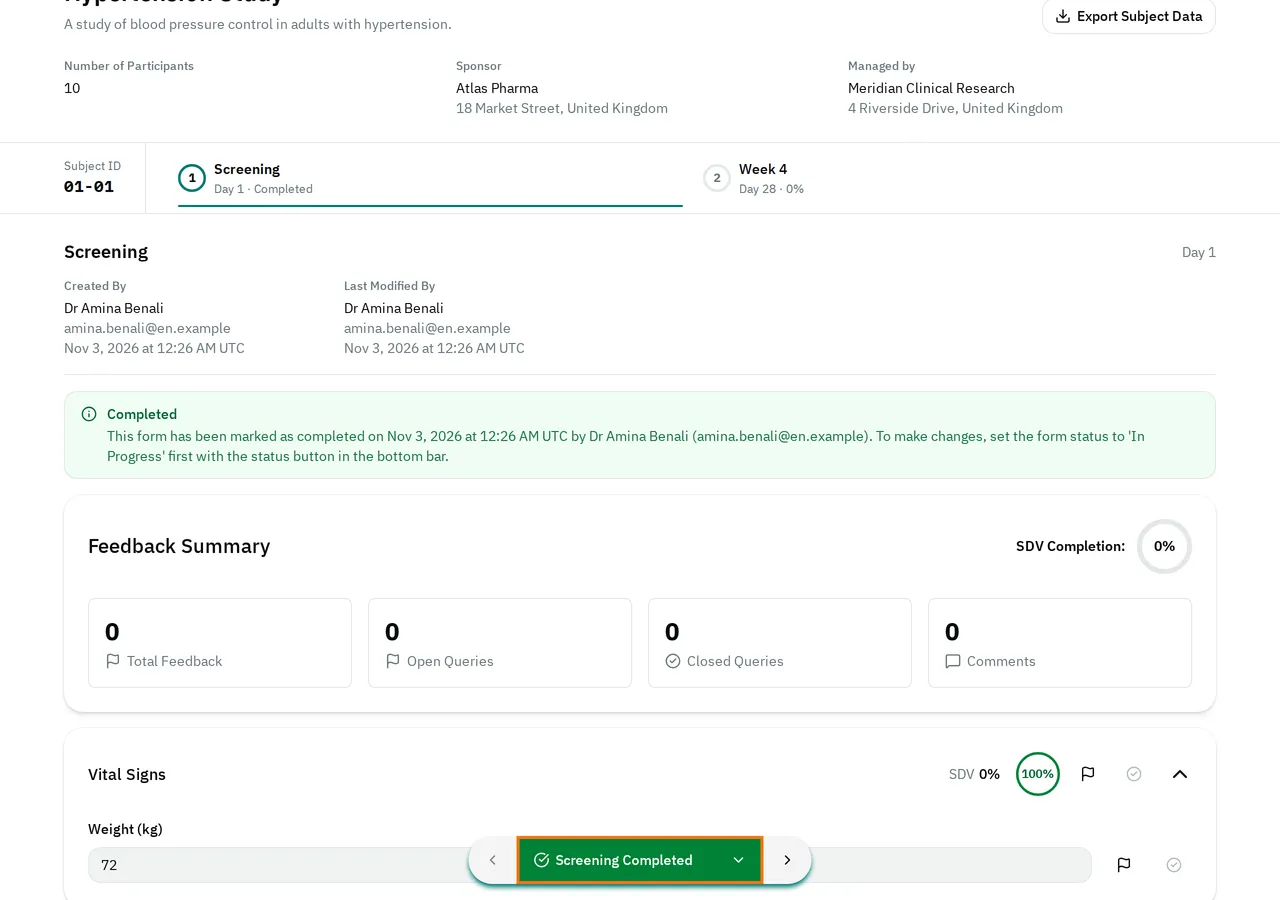
-
Open the visit.
-
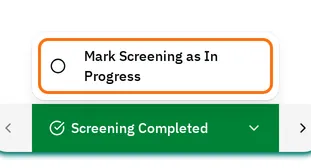
At the bottom of the page, select Screening Completed.
-
Select Mark Screening as In Progress.
-
Change the data.
-
Mark the visit as completed again.
If the subject is already signed off
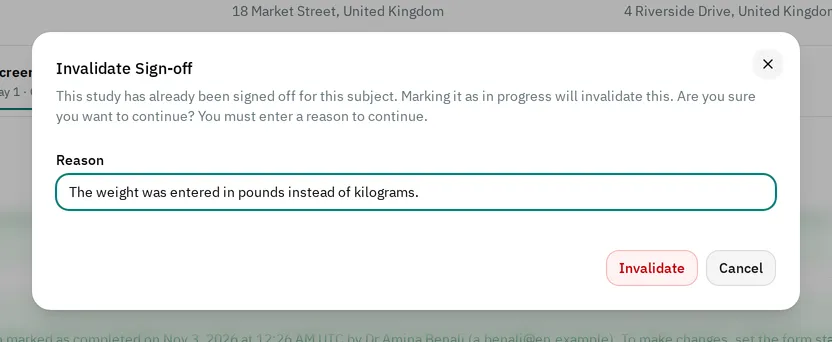
Section titled “If the subject is already signed off”When you set a visit of a signed-off subject back to In Progress, the eCRF cancels the sign-off. It shows Invalidate Sign-off and asks for a reason.
-
In Reason, type why you must change the visit.
-
Select Invalidate.
When all the visits are completed again, the Principal Investigator must sign off the subject again.
If you cannot change the status
Section titled “If you cannot change the status”- The visit shows Read-only: your role cannot change visit data.
- The visit shows Locked: the study is locked. Nobody can change its data until a Data Manager or an administrator unlocks it.