Create a SUSAR from a serious adverse event
A SUSAR is a suspected unexpected serious adverse reaction. In the eCRF, you create it from the serious adverse event it describes, and it stays linked to that event. To report the event first, see Report an adverse event.
Who can do this:
- To create SUSARs, save drafts, finalize them, and start or abandon follow-ups: Principal Investigator, Sub-Investigator and Clinical Research Associate (Hospital).
- To submit and close a SUSAR: only the Principal Investigator.
- To override the status of a SUSAR: Principal Investigator and Data Manager.
- Other roles can open submitted SUSARs, but cannot change them.
Which adverse events qualify
Section titled “Which adverse events qualify”An adverse event qualifies for a SUSAR when:
- its type is Serious Adverse Event (SAE),
- its Causality Relationship is one that your study marks for SUSARs,
- and it has no SUSAR yet.
It qualifies as soon as you save it, even as a draft. Your administrator sets which causality relationships lead to a SUSAR.
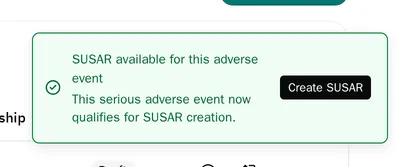
When you save a new serious adverse event that qualifies, the eCRF shows SUSAR available for this adverse event. Select Create SUSAR in this message to start the SUSAR.
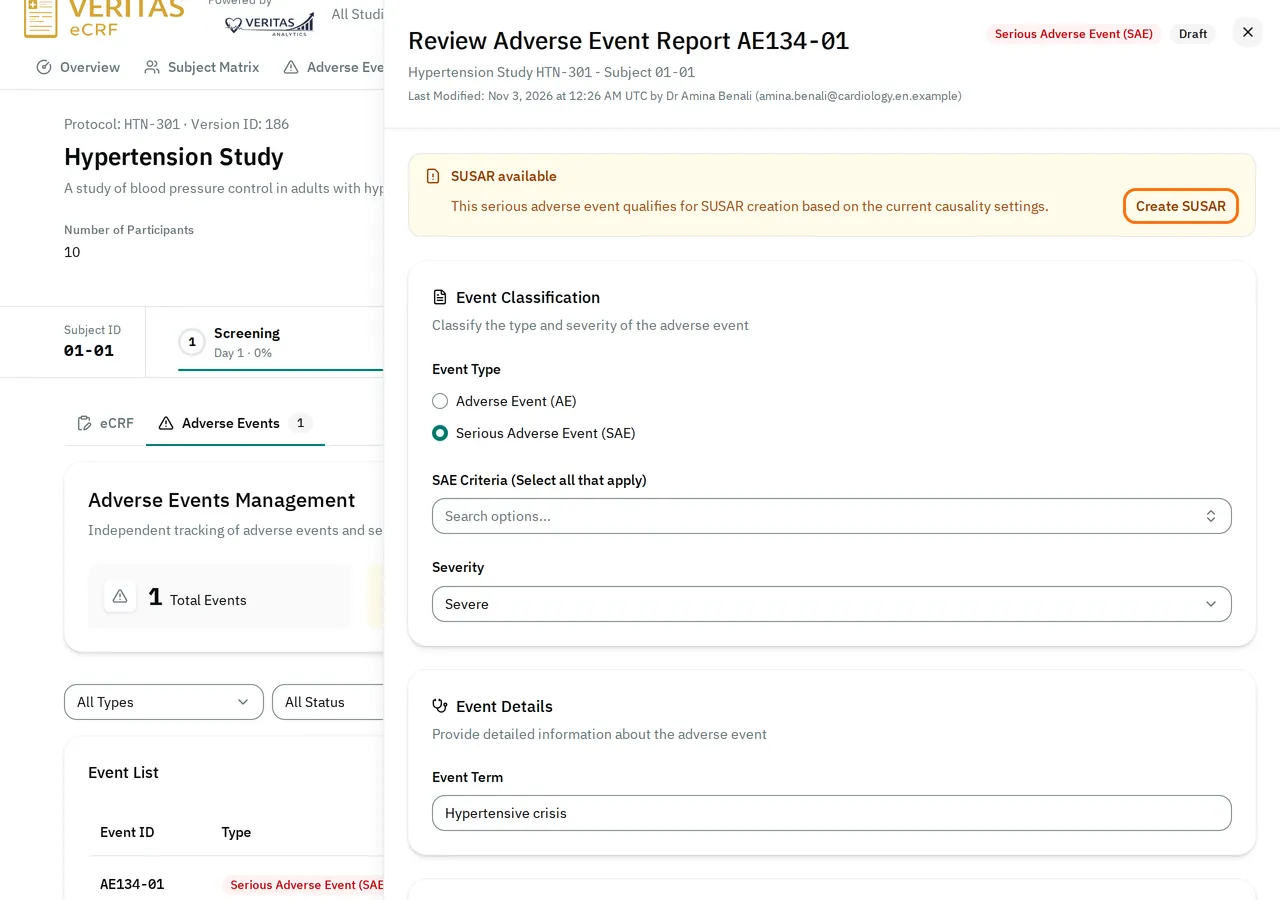
The report of the adverse event also shows SUSAR available, with the same button.
Create a SUSAR
Section titled “Create a SUSAR”-
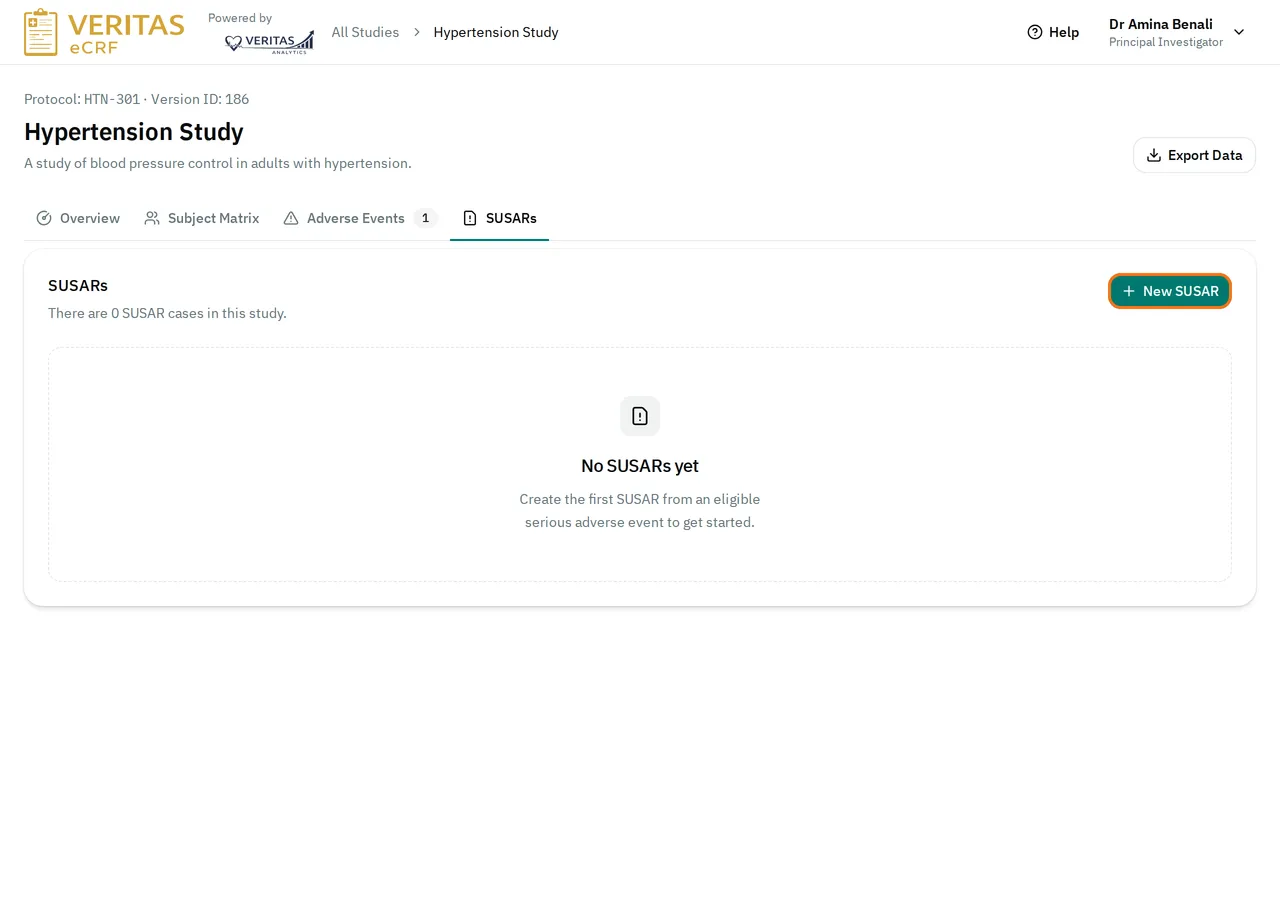
Open the study. Select the SUSARs tab.
-
Select New SUSAR.
-
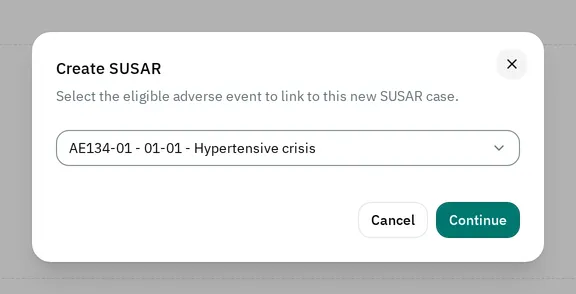
Select the adverse event. Select Continue.
-
Fill in the form. Its sections depend on your study: by default SUSAR Subject Details, Expectedness, Suspect Drug, Medical History and Tests and Reporter.
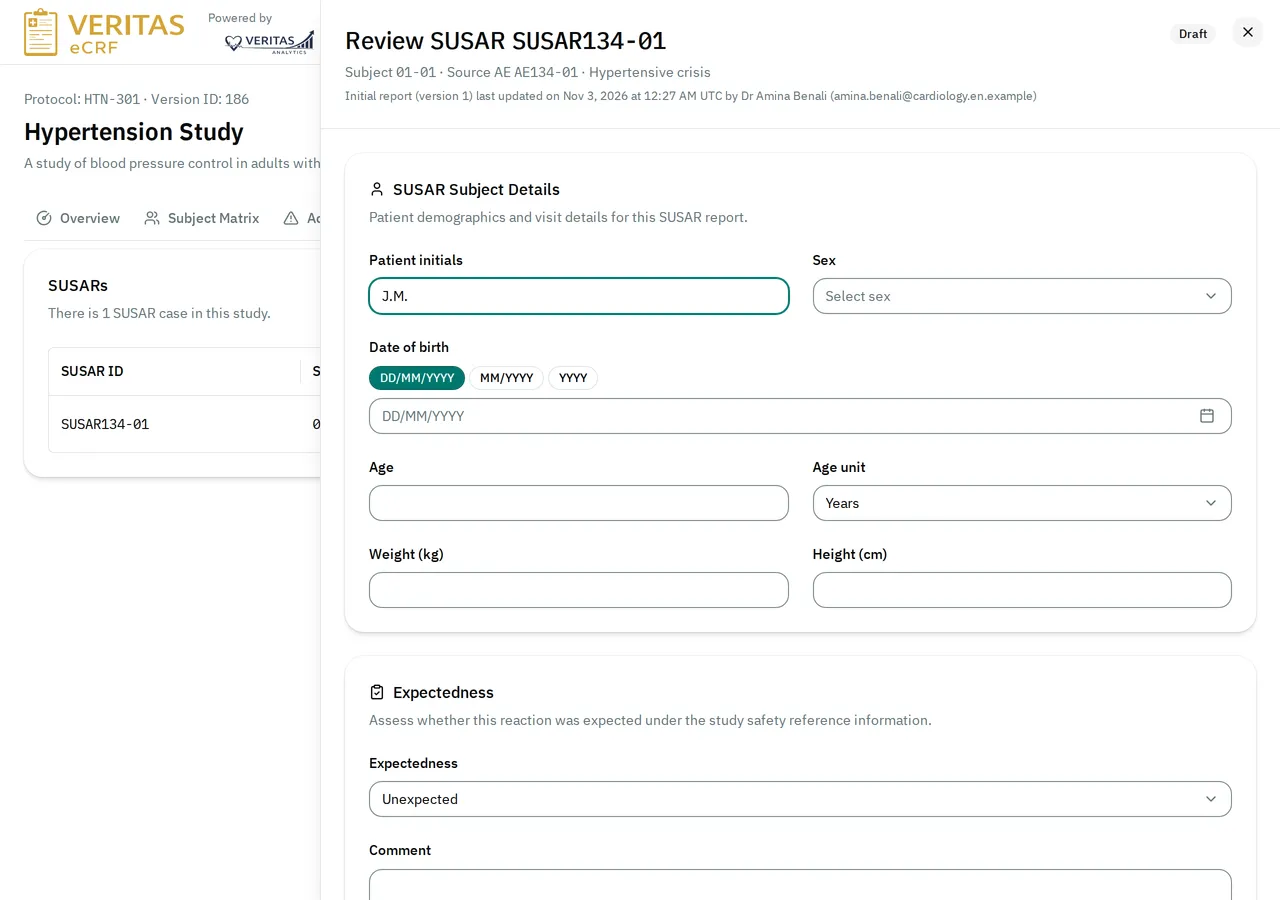
-
Select Save Draft.
The eCRF fills in part of the form from the adverse event, the subject and your account. Check every value it filled in. When the subject’s sex is not recorded, select it in Sex. The lists Expectedness, Reporter type, Dechallenge and Rechallenge start empty: select each answer.
Import the suspect drug from a medication
Section titled “Import the suspect drug from a medication”In Suspect Drug, Import from linked medication fills in the drug from a concomitant medication. It lists only the medications linked to the adverse event of the SUSAR. If the drug’s fields already have values, the eCRF asks Replace suspect drug values?. Select Replace and import to replace them.
Finalize and submit a SUSAR
Section titled “Finalize and submit a SUSAR”-
In the list, select the pencil button (Edit) next to the SUSAR.
-
At the bottom of the form, select Finalize. Nobody can change a finalized SUSAR.

-
Select the pencil button again.
-
Select Submit.
If Expectedness, the suspect drug’s name or Reporter type is empty, the eCRF does not finalize the SUSAR. It shows the fields to correct in red.
Follow up a submitted SUSAR
Section titled “Follow up a submitted SUSAR”A follow-up creates a new working version of a submitted SUSAR. The submitted version stays live until you submit the follow-up.
-
Select the eye button (Review) next to the SUSAR.
-
Select Start Follow-up.
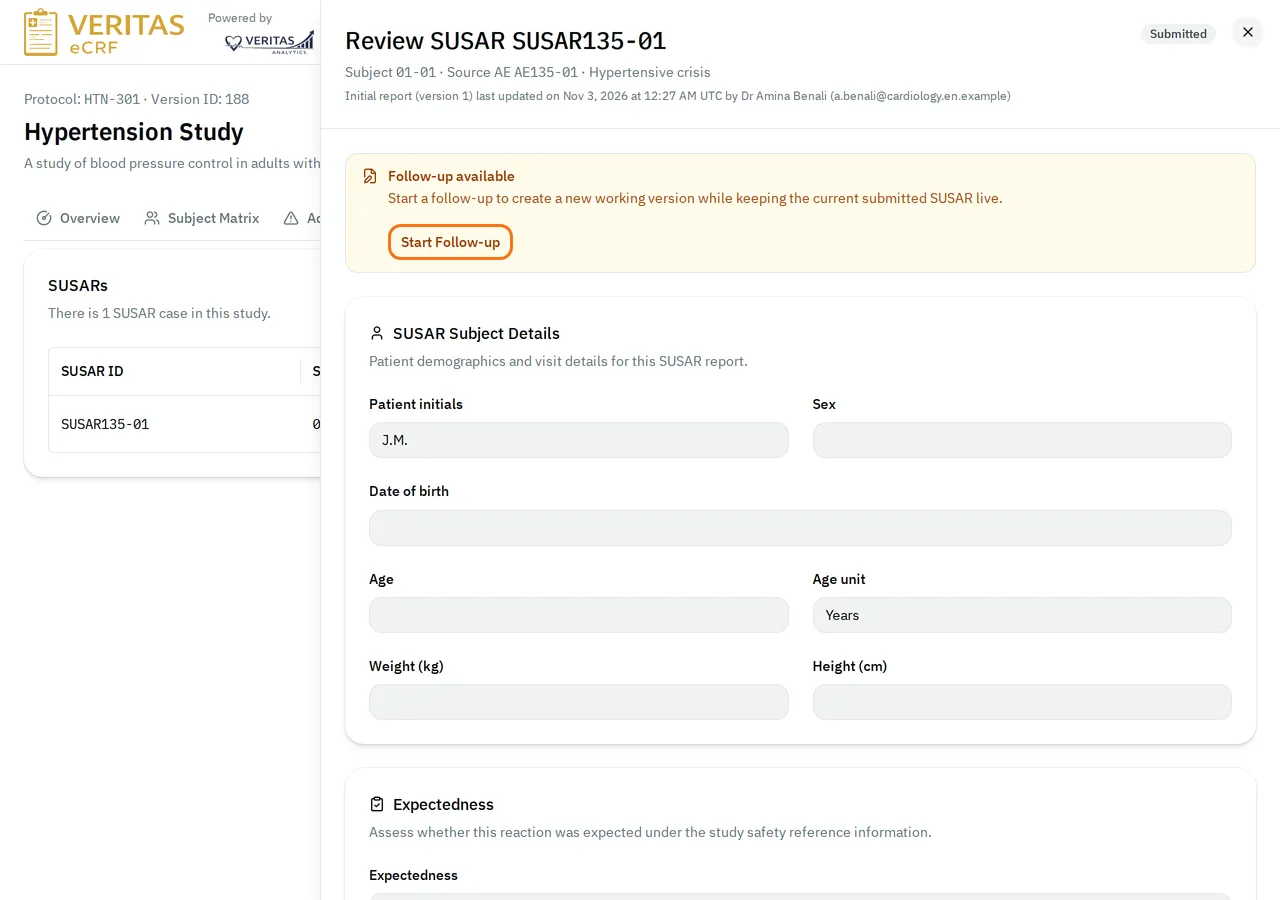
-
Change the report. Select Save Draft.
-
Finalize and submit the follow-up.
Abandon a follow-up
Section titled “Abandon a follow-up”-
Open the follow-up with the pencil button.
-
At the bottom of the form, select Abandon Follow-up.
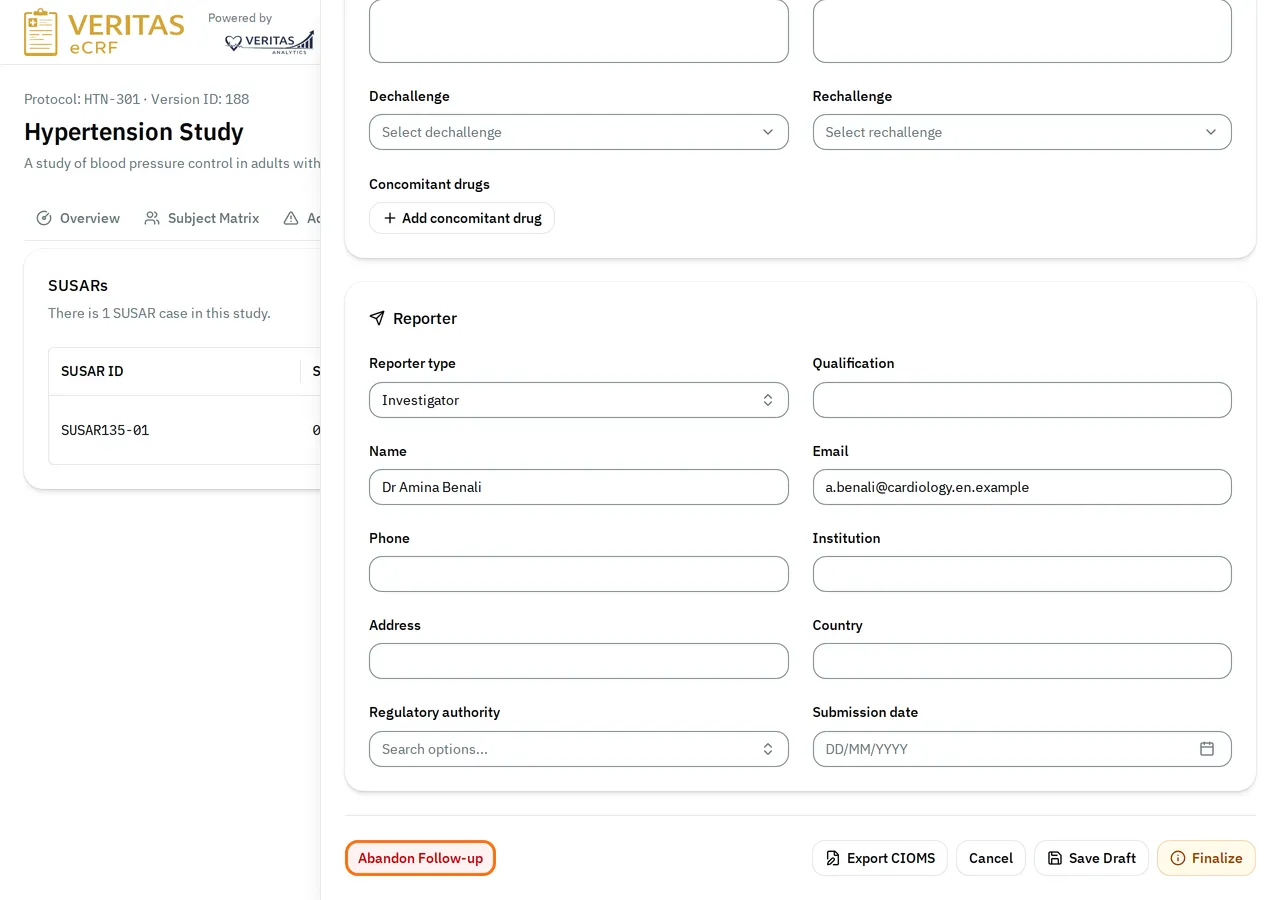
-
Select Abandon follow-up to confirm.
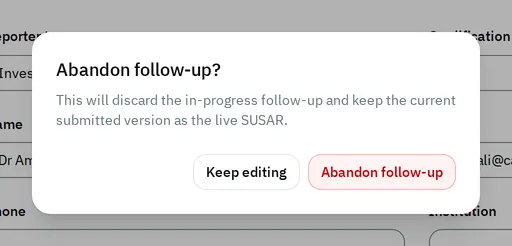
The submitted version stays live.
Close a SUSAR
Section titled “Close a SUSAR”-
Select the eye button (Review) next to the submitted SUSAR.
-
At the bottom of the form, select Close.
You cannot change or follow up a closed SUSAR, but you can override its status.
Export the CIOMS form
Section titled “Export the CIOMS form”-
Open the SUSAR with the eye or the pencil button.
-
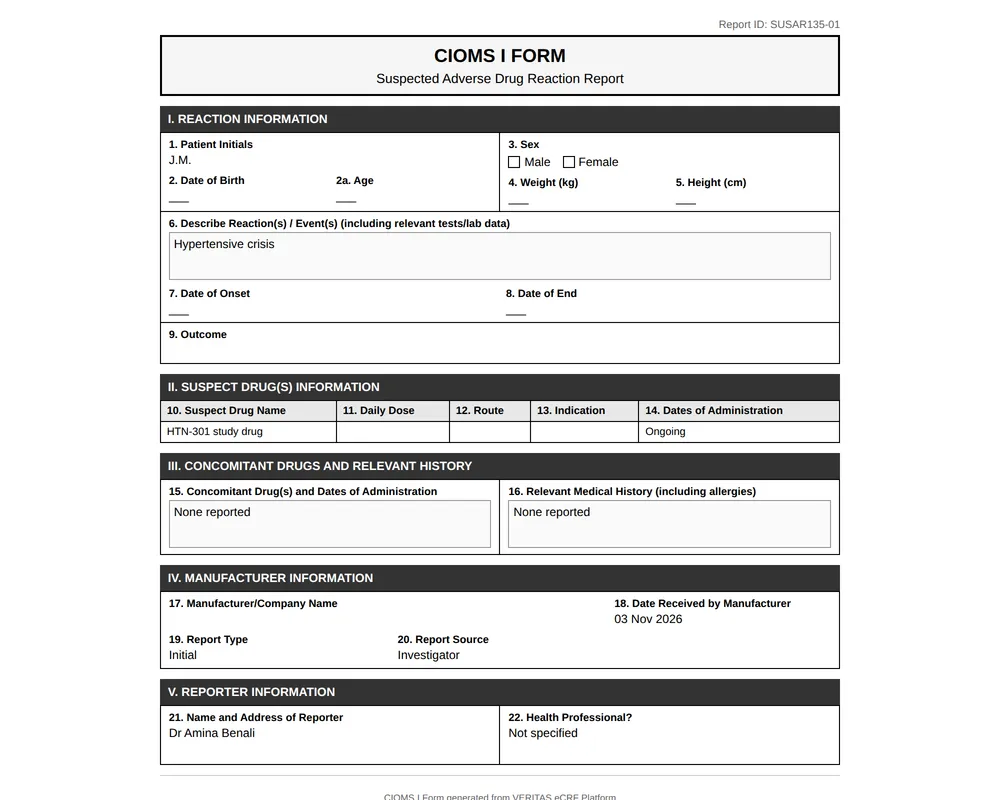
At the bottom of the form, select Export CIOMS.
The eCRF opens the CIOMS I form in a new window, then your browser’s print dialog. Print it, or save it as a PDF. The form is in English.
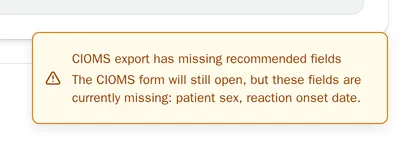
If recommended fields are empty, the eCRF shows CIOMS export has missing recommended fields and lists them. The form opens anyway.
If the window does not open, the eCRF shows CIOMS export failed. Allow pop-up windows for the eCRF in your browser. Then try again.
If the adverse event no longer qualifies
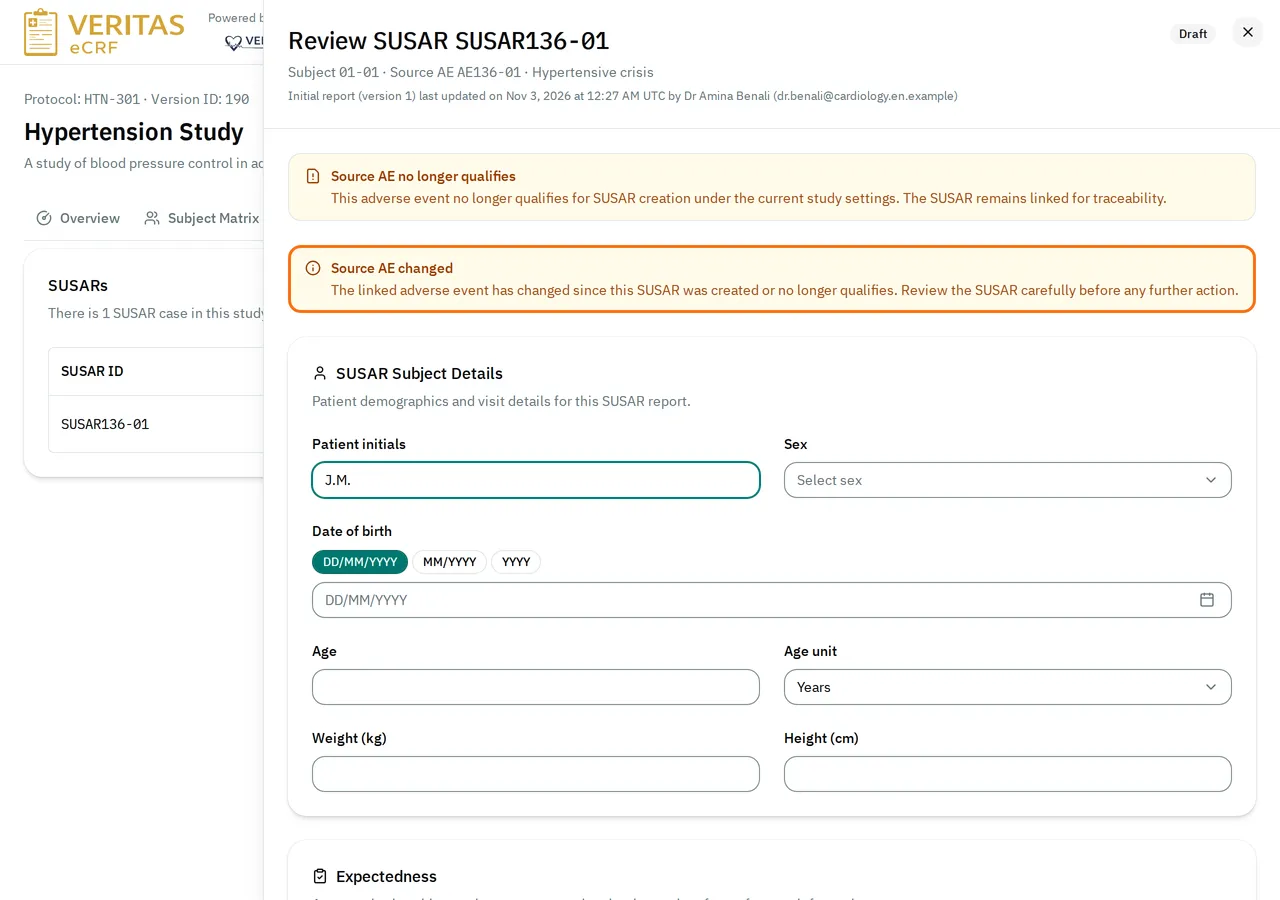
Section titled “If the adverse event no longer qualifies”An adverse event no longer qualifies when someone changes it, for example to a non-serious event or to another causality relationship. Its SUSAR then shows Source AE no longer qualifies and Source AE changed. The SUSAR stays linked to the event. Review it. If it no longer applies, override its status.
Override the status of a SUSAR
Section titled “Override the status of a SUSAR”An override sets a SUSAR to any status, with a reason. For example, it closes a SUSAR that no longer applies, or reopens a closed one.
-
In the list, select the arrows button (Override Status) next to the SUSAR.
-
In Status, select the new status.
You cannot select Abandoned.
-
In Reason, type why you override the status.
-
Select Confirm override.
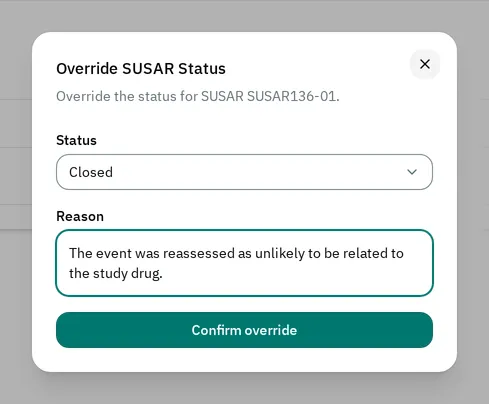
The SUSAR then shows Status overridden with your reason.
If you cannot create or change a SUSAR
Section titled “If you cannot create or change a SUSAR”- The New SUSAR button is disabled: point to it to read why. Check the type and the causality relationship of the adverse event if it reads No eligible unlinked adverse events are currently available for SUSAR creation.
- The study has no SUSARs tab: your study marks no causality relationship for SUSARs.
- You see no Submit or Close button: only the Principal Investigator can use them.
- The form shows Your role can't make these changes. Your role cannot change SUSARs.
- The form shows You can't make changes while the form is locked. The study is locked. Nobody can change its data until a Data Manager or an administrator unlocks it.
- The arrows button (Override Status) is disabled: point to it to read why.