Answer a query
A monitor or a Data Manager raises a query when a value of a visit needs a check or a correction. Answer each query on your subjects’ visits. A query stays open until the person who raised it closes it.
Who can do this: Principal Investigator, Sub-Investigator, Clinical Research Associate (Hospital), Data Manager, Clinical Research Associate and Clinical Research Administrator.
Find the queries to answer
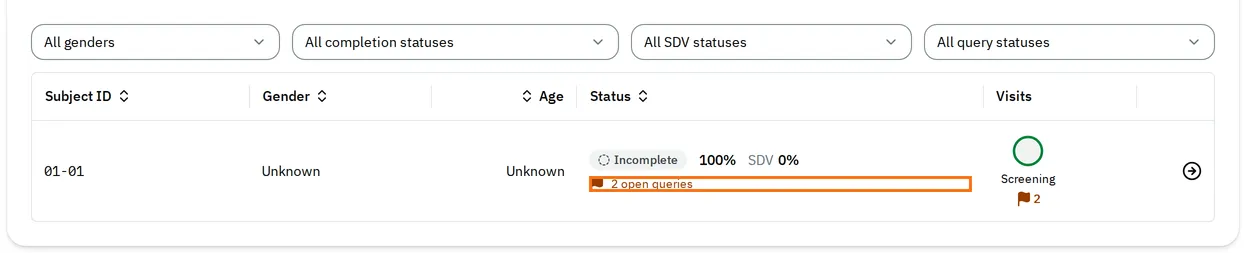
Section titled “Find the queries to answer”On the Subject Matrix tab, each subject shows how many queries are waiting for an answer, for example 2 open queries. Each visit of the subject shows a flag with the number of its queries. To list only these subjects, select With open queries in the All query statuses filter.
In a visit, the Feedback Summary card counts the visit’s Open Queries. The visit in the list of visits shows a filled orange flag with the number of its open queries. Each section shows how many open queries it contains, and the field that has one shows a filled orange flag.
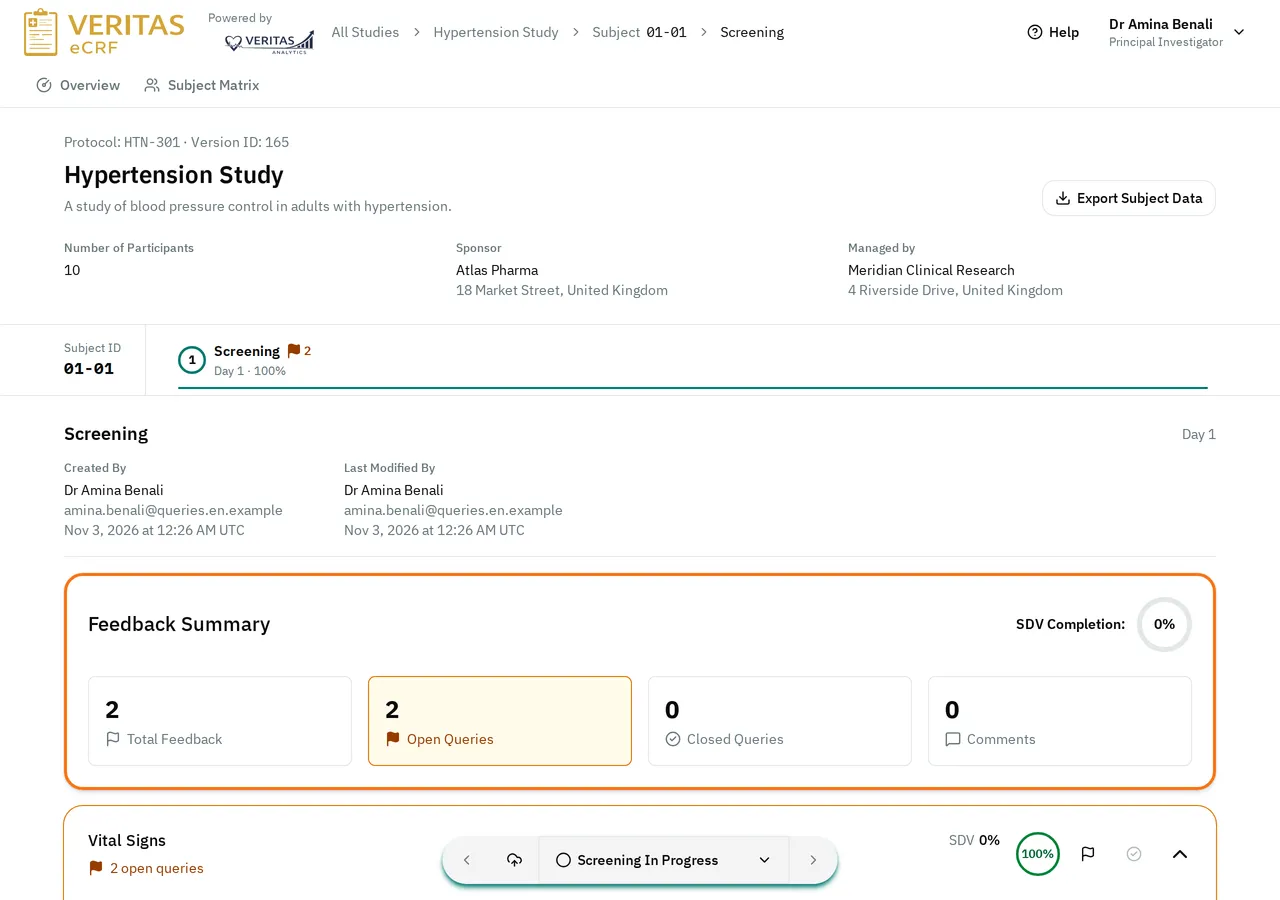

Once a query has a response, its flag is no longer filled.
Answer a query
Section titled “Answer a query”-
Open the visit of the subject.
-
Next to the field, select the flag. A query on a whole section is under the flag of the section’s header.
-
Select the query to see its details.
-
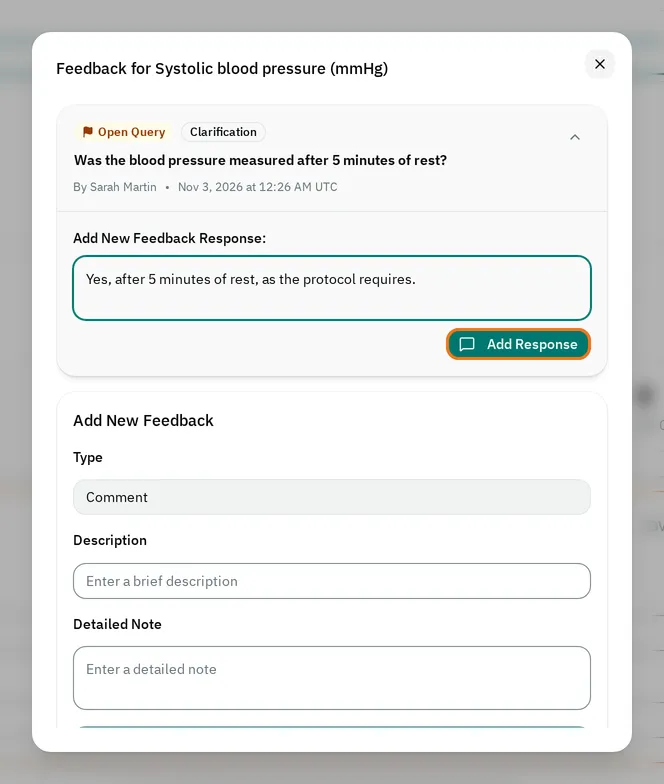
In Type your response..., type your response.
-
Select Add Response.
The query now shows Open Query · Answered. The person who raised it reads your response, then closes the query or asks you for more.
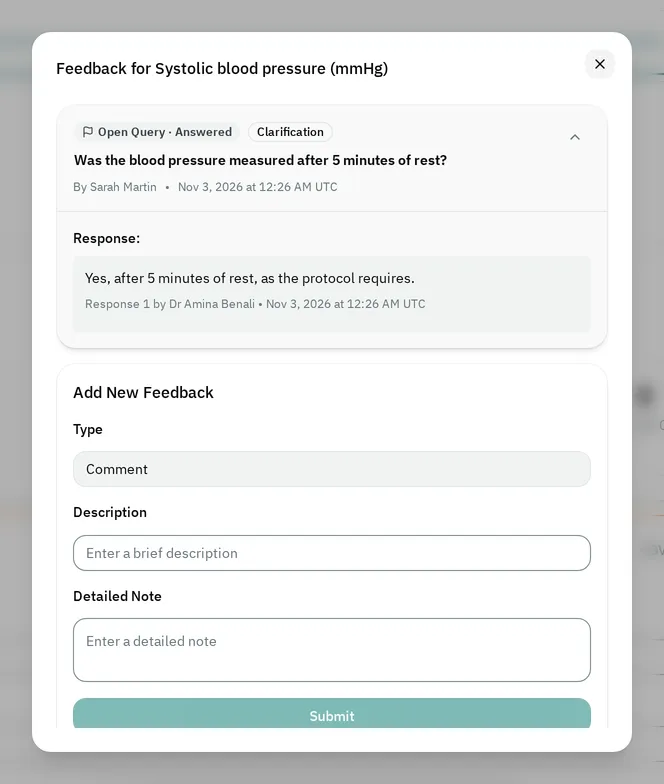
You can add one response to a query. If your study allows several responses per query, the response box stays after your first response. If the query is reopened, it waits for a new response, and you can add one. You can answer a comment the same way.
Change the value before you answer
Section titled “Change the value before you answer”Three query types ask you to change the value of the field before you answer:
- A Missing Data query says Please populate the field before adding a response.
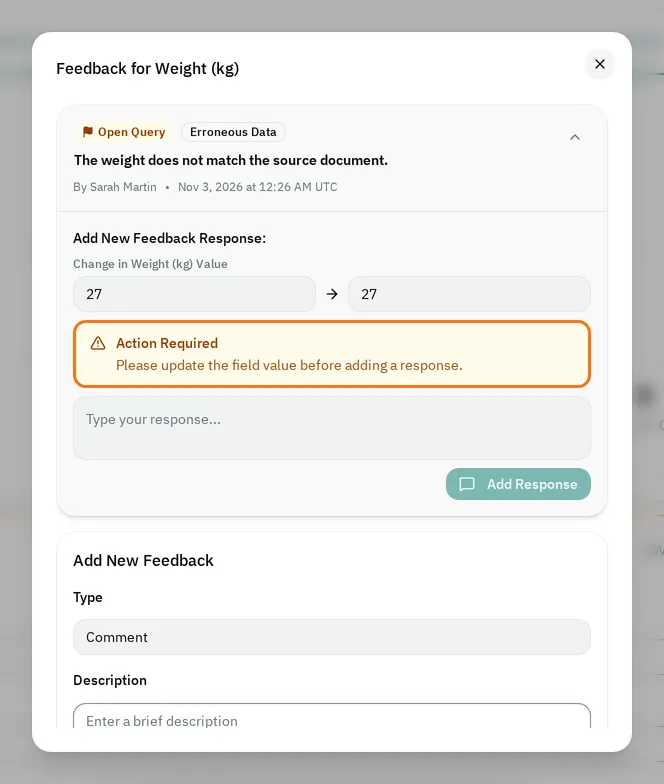
- An Erroneous Data query says Please update the field value before adding a response.
- An Out of Range query says Please correct the out-of-range value before adding a response.
Until the value changes, the query shows Action Required and you cannot type a response.
-
Close the window.
-
Correct the value of the field.
-
At the bottom of the page, select the cloud button (Save current progress without completing the visit).
-
Select the flag next to the field again. Select the query. The query shows the old value and the new one.
-
Type your response. Select Add Response.
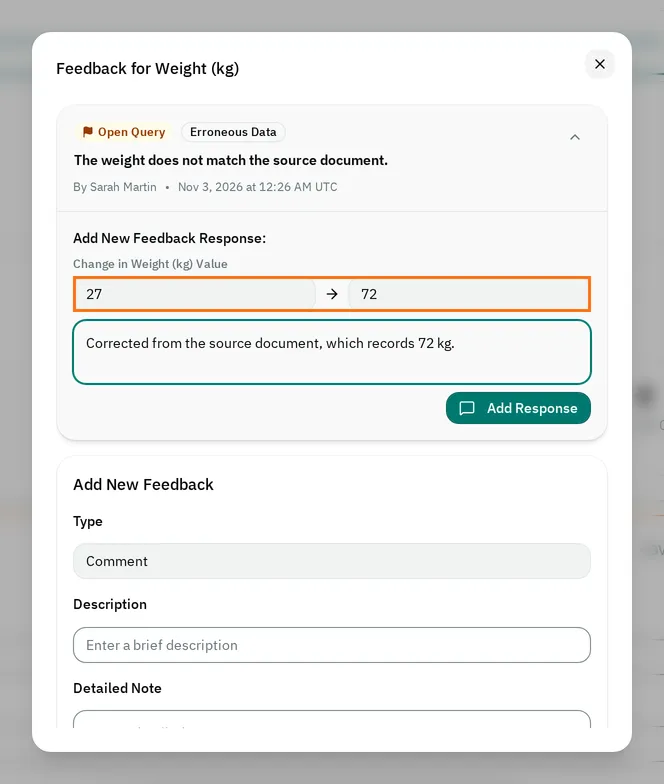
If you answer before you save the visit, the eCRF shows Save Progress. Select Continue to save the visit and add your response.
Answer a query on a completed visit
Section titled “Answer a query on a completed visit”A completed visit that has open queries shows Open Queries at the top.
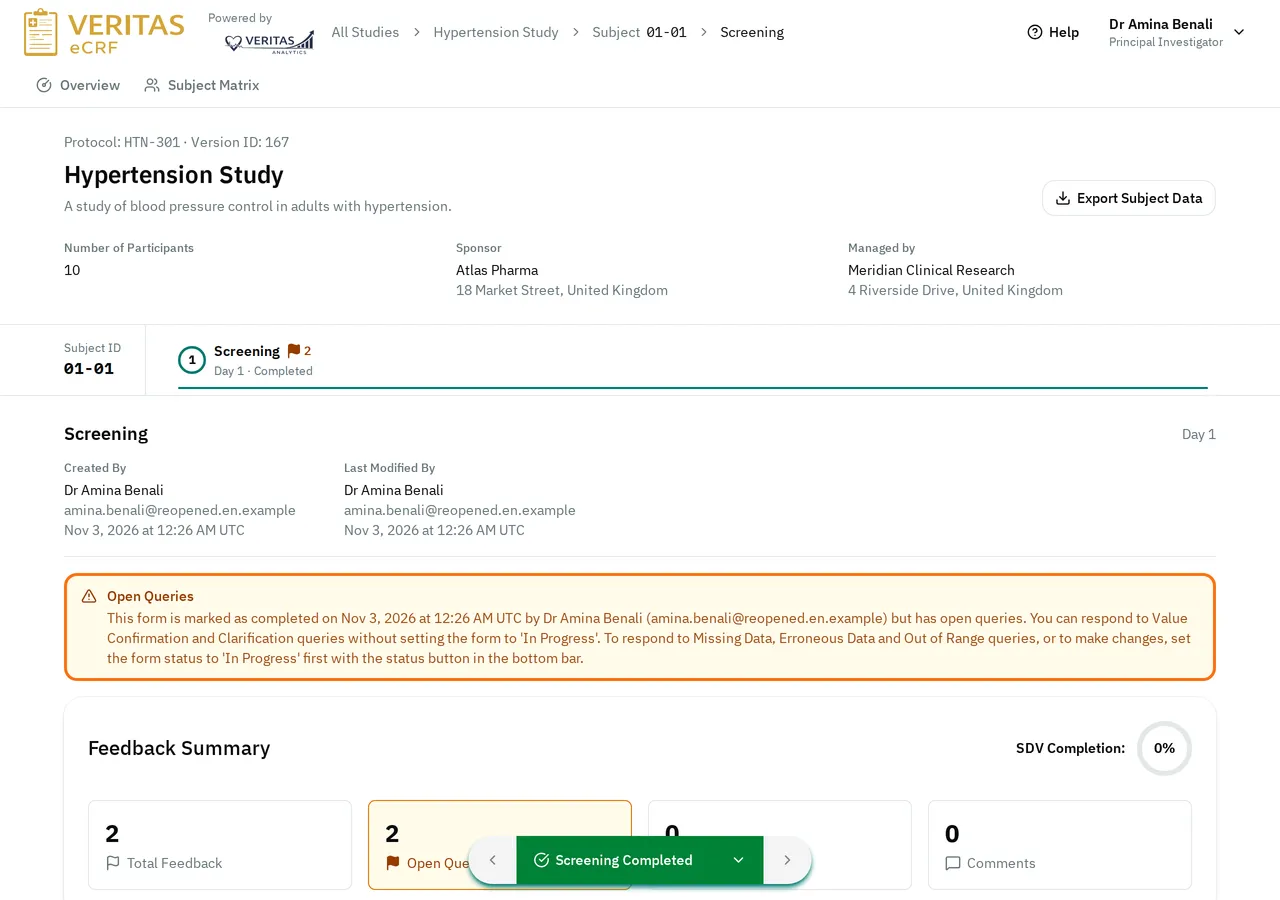
To answer Value Confirmation and Clarification queries, you do not need to set the visit back to In Progress. To answer the three query types that ask for a new value, set the visit back to In Progress first:
-
Mark the visit as completed again.
If you cannot answer
Section titled “If you cannot answer”- There is no response box under the query:
- Your role cannot answer queries.
- The query already has a response, and your study allows only one.
- The query shows Closed Query: the person who raised it has closed it.
- The study is locked: the visit shows Locked.
- The response box is grayed out: the query shows Action Required. Change the value first.
- The Add Response button is grayed out: type your response first.