Report an adverse event
Record each adverse event (AE) or serious adverse event (SAE) of a subject in a report. A report goes through four statuses: Draft, Finalized, Submitted and Closed. You can change only a draft.
Who can do this:
- Create, save and finalize a report: Principal Investigator, Sub-Investigator and Clinical Research Associate (Hospital).
- Submit and close a report: Principal Investigator.
- Override the status of a report: Principal Investigator and Data Manager.
Other roles can open the reports, but they cannot change them.
Create a report
Section titled “Create a report”-
Open the subject’s visit during which the event was reported.
-
Select the Adverse Events tab.
-
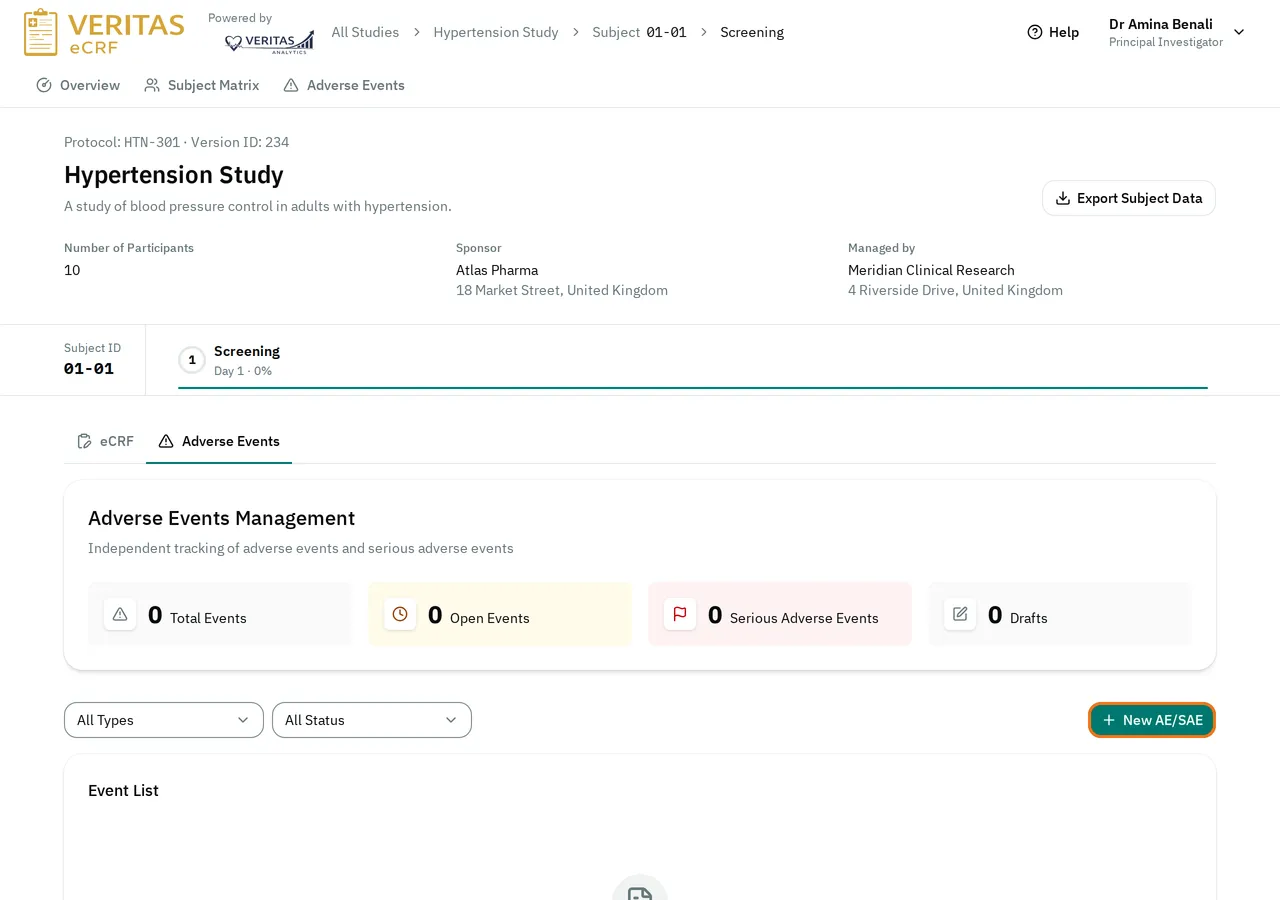
Select New AE/SAE.
-
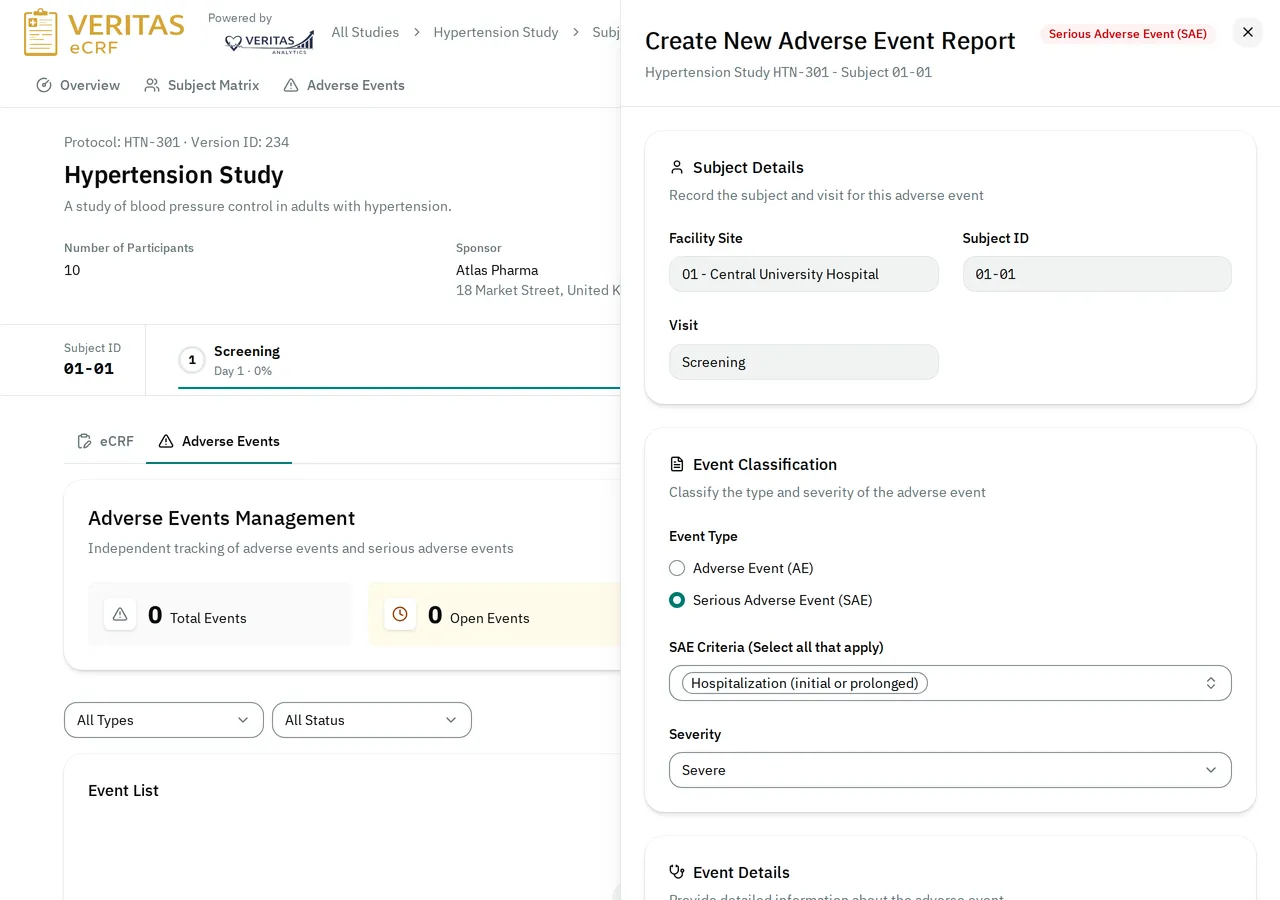
Under Event Type, select Adverse Event (AE) or Serious Adverse Event (SAE). For a serious adverse event, select in SAE Criteria (Select all that apply) what makes it serious.
-
Fill in the other sections of the report, such as Event Term, Start Date and Causality Relationship. Your study sets the sections and their options.
-
Select Save Draft.
The report appears in the Event List with the status Draft. You can save a draft before you fill in all the required fields.

If you close a report that has changes you have not saved, the eCRF asks Unsaved Changes. Select Cancel to go back to the report, or Continue to discard the changes.
If the event qualifies for a SUSAR
Section titled “If the event qualifies for a SUSAR”Your study can link some causality relationships to SUSARs. When you save a new serious adverse event with one of them, the eCRF shows SUSAR available for this adverse event. The report then shows SUSAR available with the button Create SUSAR. See Create a SUSAR.
Finalize, submit and close the report
Section titled “Finalize, submit and close the report”-
In the Event List, select the eye button (Review) in the report’s row.
-
Check the data. To change it, change the fields. Select Save Draft. Open the report again.
The Finalize Report button stays disabled while the report has changes you have not saved.
-
Select Finalize Report. The report becomes Finalized, and nobody can change its data any more.
-
The Principal Investigator opens the report again. They select Submit Report. The report becomes Submitted.
-
When the follow-up of the event is over, the Principal Investigator opens the report again. They select Close Report.
The report becomes Closed. Only an override can change its status after that.

If the report cannot be finalized
Section titled “If the report cannot be finalized”If a required field is empty, the eCRF does not finalize the report. It shows Adverse Event Finalization Failed and shows the fields to complete in red. It also shows Report cannot be finalized.
Fill in the fields. Select Save Draft. Open the report. Finalize it again.
Override the status of a report
Section titled “Override the status of a report”To correct a report that is no longer a draft, set it back to Draft. You can set a report to any other status, even a closed one.
-
In the Event List, select the arrows button (Override Status) in the report’s row.

-
In Event Status, select the new status.
-
In Modification Reason, type why you change it.
-
Select Confirm.
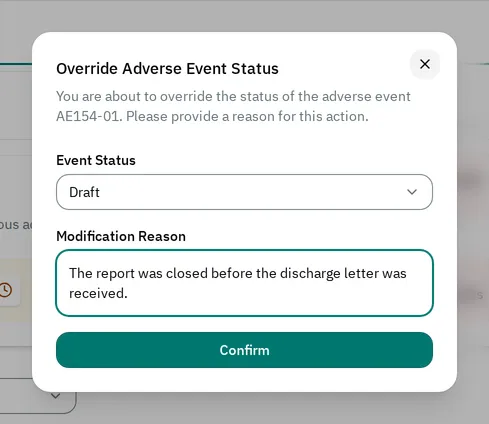
The report shows Status Overridden with your reason. If you set the report back to Draft, the roles that create reports can change it and finalize it again.

The study’s Adverse Events tab has the same button for every report of the study.
If you cannot change a report
Section titled “If you cannot change a report”- There is no Adverse Events tab in the visit: your study does not record adverse events at this visit.
- There is no New AE/SAE button: your role cannot create reports, or the study is locked.
- The report shows Your role can't make these changes. Your role cannot do this step. For example, only the Principal Investigator can submit and close a report.
- The report shows You can't make changes while the form is locked. The study is locked. Nobody can change its reports until a Data Manager or an administrator unlocks it.
- The Override Status button is disabled: point to it to see why. It shows Your role can't override statuses. or You can't override the status while the form is locked.