Create a user and give them access
Each person signs in to the eCRF with their own user. Their role decides what they can do. Their organization, assigned studies and facility site decide which studies and subjects they see.
Who can do this: System Administrator and Clinical Research Administrator. A Clinical Research Administrator creates users of their own organization only.
Before you start, make sure the user’s organization, studies and facility site exist in the admin.
Create the user
Section titled “Create the user”-
In the admin, open Users. Select Create New.

-
In Email, enter the email address the user signs in with.
-
In New Password and Confirm Password, enter a temporary password. The eCRF sends no email, so give the password to the user yourself.
-
In Full Name, enter the user’s name.
-
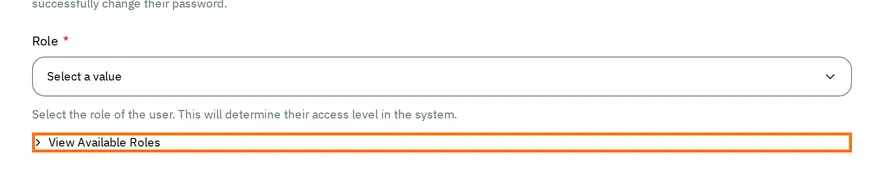
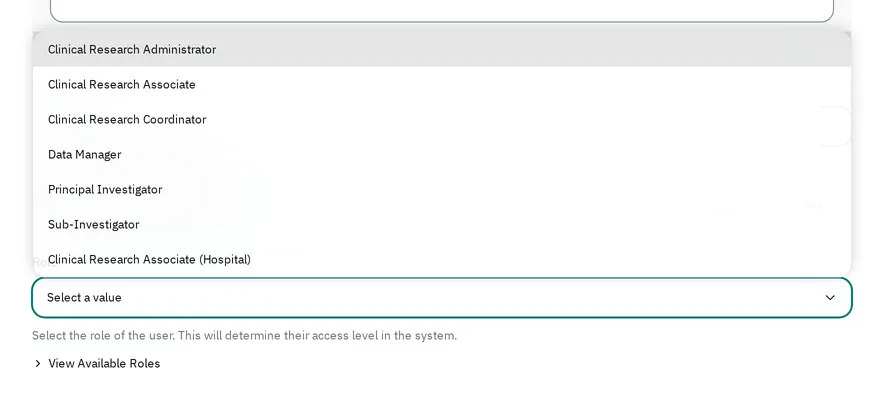
In Role, select the user’s role. Under View Available Roles, the admin describes what each role can and cannot do.
-
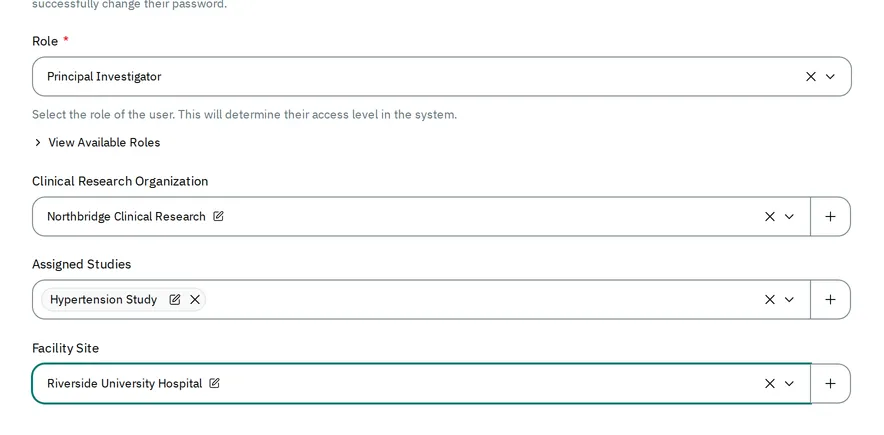
Fill in the fields that the role shows, from top to bottom: Clinical Research Organization or Sponsor, then Assigned Studies, then Facility Site. Which fields each role needs lists them. The admin lists in Facility Site only the sites of the studies in Assigned Studies.
-
Select Save.
The user can now sign in to the eCRF with their email and the temporary password. Every new user except a System Administrator must then choose a new password: the eCRF shows Change Password Required.
Which fields each role needs
Section titled “Which fields each role needs”Each role shows only the fields it needs, and the admin does not save the user until you fill them in:
- For a Clinical Research Administrator, a Clinical Research Associate, a Clinical Research Coordinator or a Data Manager: Clinical Research Organization.
- For a Principal Investigator, a Sub-Investigator or a Clinical Research Associate (Hospital): Clinical Research Organization, Assigned Studies and Facility Site.
- For a Sponsor: Sponsor and Assigned Studies.
- For a System Administrator: none.
Together, these fields decide which studies the user sees in the eCRF:
- A user with only an organization sees every published study that lists their organization.
- A user with assigned studies sees only those studies, and only while each one still lists their organization or sponsor.
- A user with a facility site sees only the studies that list their site, and only the subjects of that site.
- A System Administrator sees every published study.
If a user does not see a study they expect, see Find out why a user can’t see a study.
Avoid these mistakes
Section titled “Avoid these mistakes”-
Do not change the organization after you assign studies. When you change Clinical Research Organization or Sponsor, the admin empties Assigned Studies. The admin then lists in Assigned Studies only the studies of the organization you selected.
-
Do not save before you fill in the fields that the role needs. These fields show no asterisk, but the admin does not save the user without them. It lists the fields to fill in:
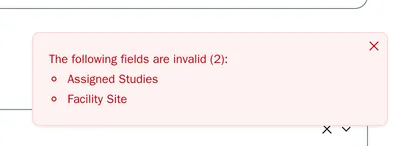
If the admin hides those fields after you select Save, select the role again in Role to show them.
As a Clinical Research Administrator
Section titled “As a Clinical Research Administrator”A Clinical Research Administrator manages the users of their own organization only:
- The list of Users shows only the users of your organization.
- The field Clinical Research Organization shows your organization, and the admin does not save another one: it shows Clinical research organization must be your own.
- The field Role does not offer Sponsor or System Administrator.
- You can open, change and unlock the users of your organization, but only a System Administrator can delete a user.
Change a user’s access
Section titled “Change a user’s access”Who can do this: System Administrator and Clinical Research Administrator. A Clinical Research Administrator changes the users of their own organization only.
-
In Users, open the user.
-
Change their role, organization, assigned studies or facility site.
-
Select Save.
The user sees the change the next time they open a page of the eCRF. When you change the role, the admin clears the fields that the new role does not use.