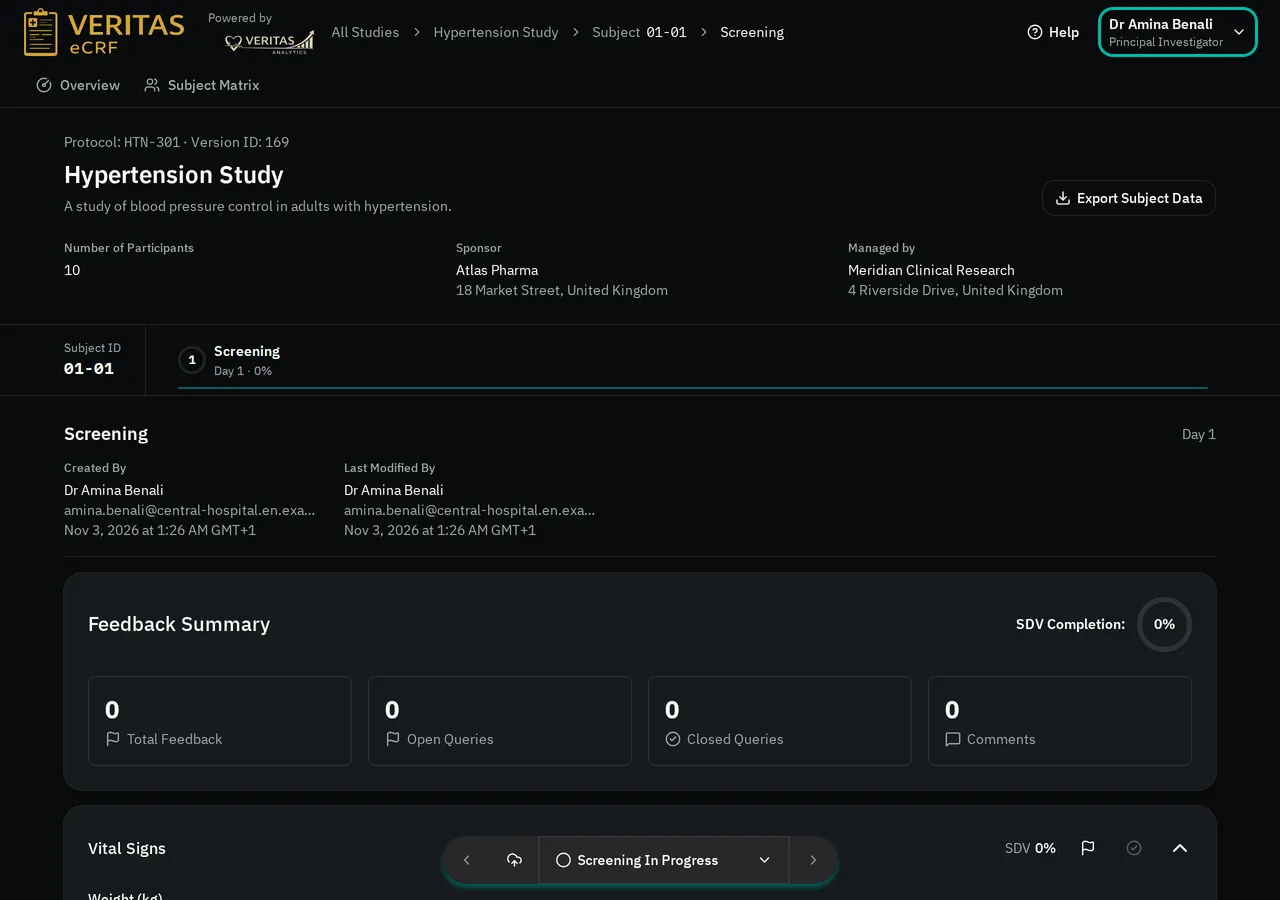
Change the language, time zone or dark mode
You can select the language of the eCRF, the time zone of the times it shows, and dark mode. The eCRF remembers each choice in this browser. On another computer or in another browser, select them again.
Who can do this: every user, whatever their role.
Open the user menu
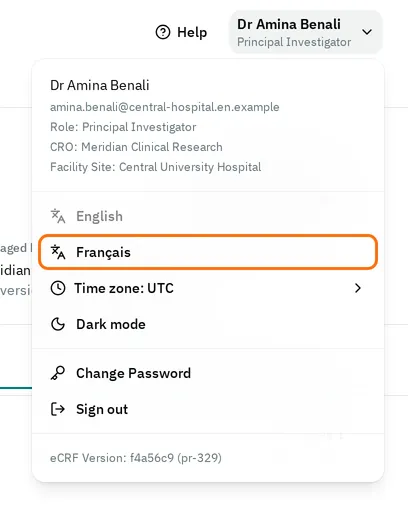
Section titled “Open the user menu”At the top right, select your name. The menu shows your name, your email, your role, your organization and your facility site. Give these details when you contact your administrator or support.
Change the language
Section titled “Change the language”-
At the top right, select your name.
-
Select English or Français.
The eCRF shows the page in that language at once. Until you select a language, it uses the language of your browser if it is English or French, and English otherwise.
The names that come from your study, such as the names of the study, its visits and its fields, do not change with the language.
Change the time zone
Section titled “Change the time zone”-
At the top right, select your name.
-
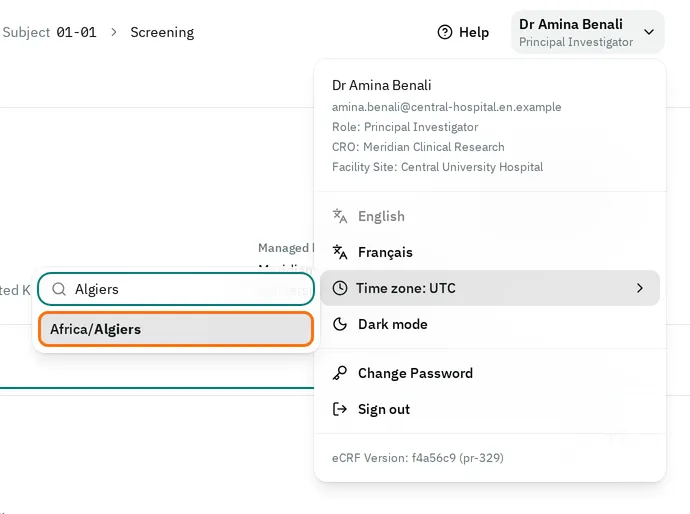
Select Time zone: UTC.
-
Type part of the name of your city, for example
Algiers. -
Select your time zone in the list.
The eCRF shows times in that zone, with the name of the zone after each time. For example, a visit shows when it was created and last changed. Until you select a time zone, the eCRF shows times in UTC.

The dates you enter, such as a visit date or a date of birth, stay the same in every time zone.
Turn dark mode on or off
Section titled “Turn dark mode on or off”-
At the top right, select your name.
-
Select Dark mode.
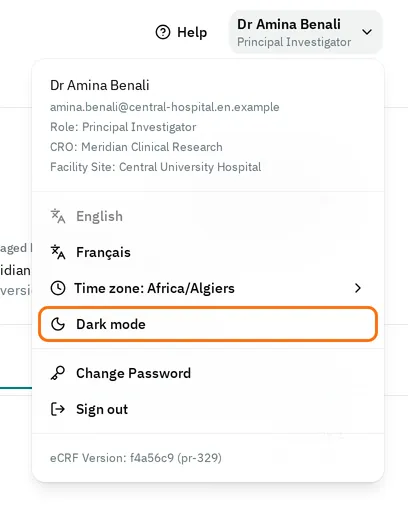
The eCRF switches to dark colors. To switch back, select Dark mode again. Until you turn on dark mode, the eCRF uses light colors, whatever the setting of your computer.