Export study data
Export study data to analyze it outside the eCRF. You select which subjects and which kinds of data to export, then download the files.
Who can do this: Data Manager, Principal Investigator, Clinical Research Administrator and System Administrator. Each person exports only the subjects they can see in the eCRF.
Choose which subjects to export
Section titled “Choose which subjects to export”-
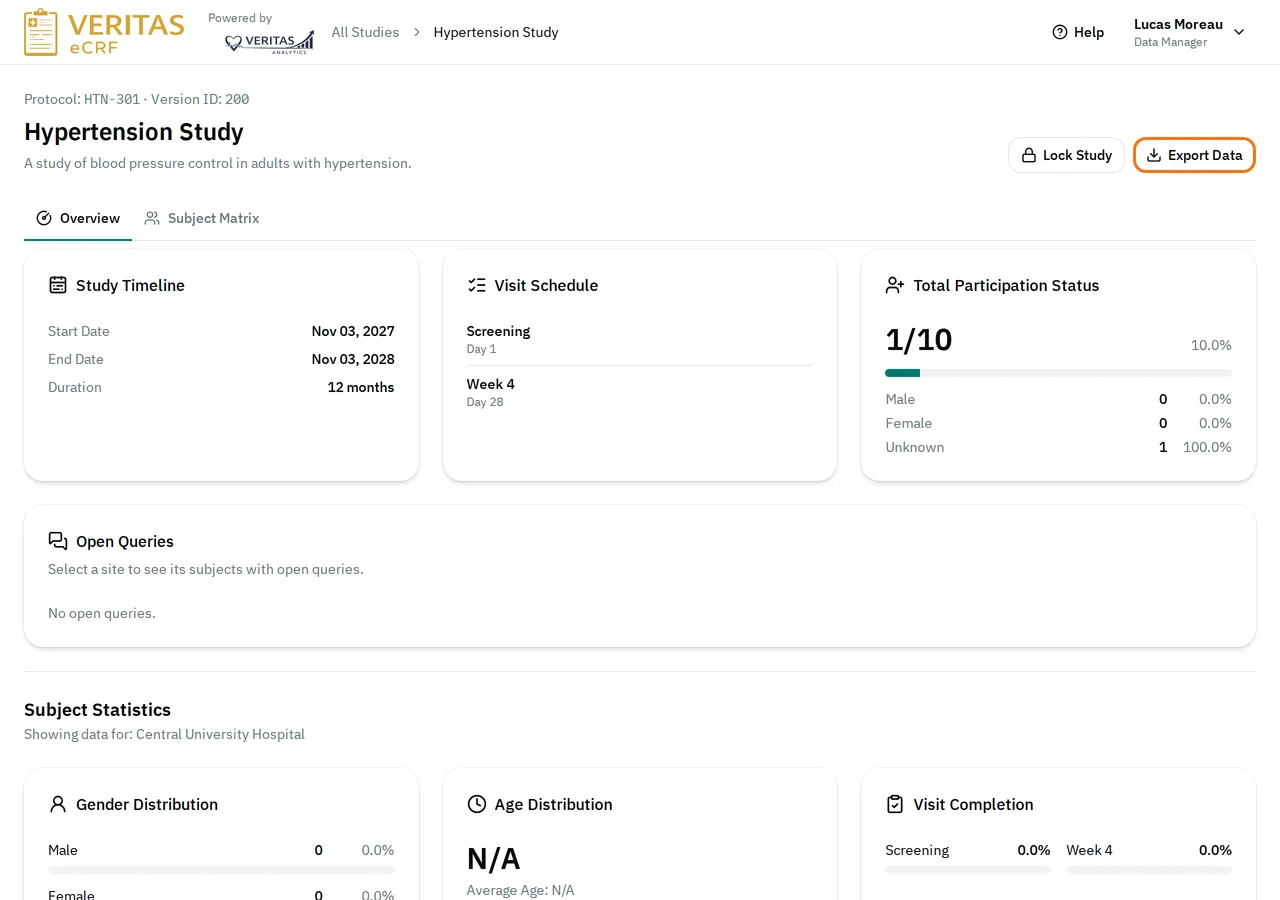
To export the whole study, select Export Data at the top right of the study page.
-
To export the subjects that the Subject Matrix shows, filter the subjects in the Subject Matrix tab. Select Export 1 Subject. The button counts the subjects that match the filters.
-
To export one subject, open any visit of the subject. Select Export Subject Data at the top right.
Export the data
Section titled “Export the data”-
Open the export window as shown above.
-
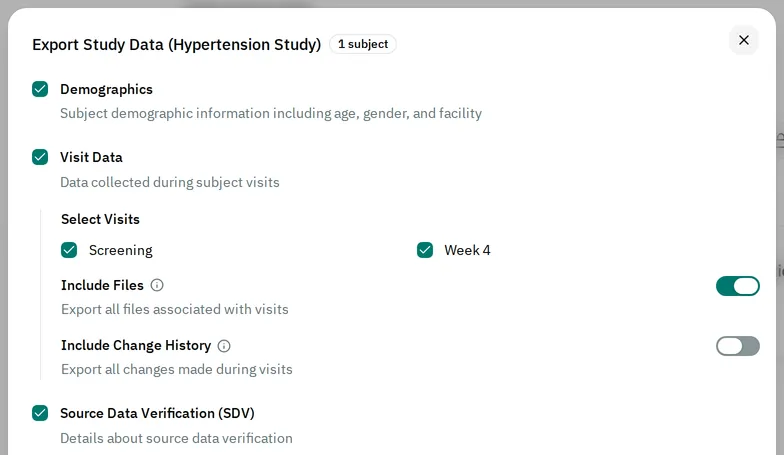
Check the kinds of data to export. They are all checked at first.
-
Under each kind of data, select its options. If the study has several visits, check the visits to export in Select Visits. Turn on Include Files to export the files uploaded in the visits. It is on at first when the study collects files. Turn on Include Change History to export every change, with who made it and when.
-
Select Export Data.
The window shows Export Complete.
For concomitant medications and SUSARs, Only Live Submitted Versions leaves out the amendments and follow-ups in progress. You cannot turn it on while Include Change History is on.
When Include Files is on, a box above the button reads Files in a ZIP Archive: The export puts the uploaded files in a ZIP archive, which you download separately from the data before you close this window. If the exported visits have no files, there is no archive.
Download the files
Section titled “Download the files”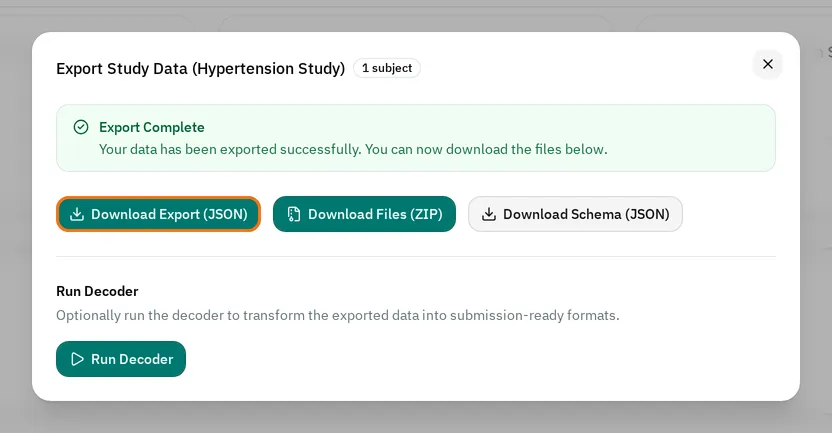
- Select Download Export (JSON) to download the exported data.
- Select Download Files (ZIP) to download the uploaded files, in a folder for each visit and subject. This button shows only when the export includes files.
- Select Download Schema (JSON) to download the study’s definition, with its visits, forms and fields.
To turn the export into submission-ready formats, run the decoder from the same window.
Export a locked study
Section titled “Export a locked study”You can still export a locked study. The export uses the study version that was in use when the lock started. See Lock or unlock a study.
If you cannot export
Section titled “If you cannot export”- You see no export button: your role cannot export data.
- The Subject Matrix button is disabled: no subject matches the filters.
- The Download Files (ZIP) button is missing: Include Files was off, or the exported visits have no files.