Edit a study's visits, forms and fields
A study’s protocol lists its visits. Each visit has a layout of sections, and each section holds the fields that investigators fill in. You edit them in the study’s eCRF part, under Protocol.
Who can do this: System Administrator.
Your changes reach the eCRF only once you publish them. Save a draft first. Then check the draft in Live Preview: see Publish a study change.
Add a visit
Section titled “Add a visit”-
In the admin, open Studies. Open the study.
-
Under Visits, select Add Visit.
-
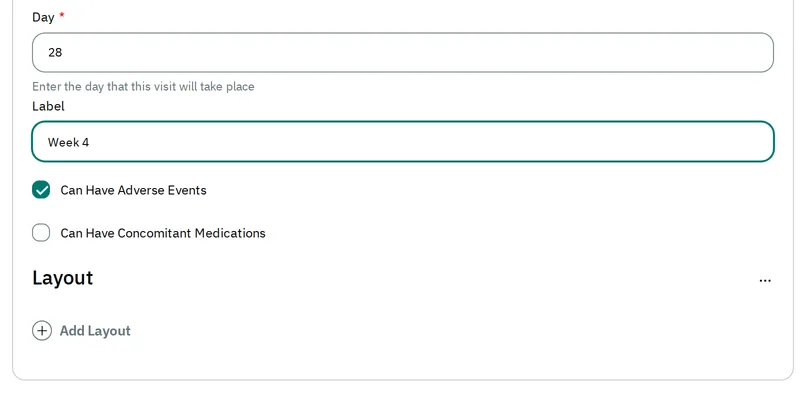
In Day, enter the day of the study on which the visit takes place. The eCRF orders visits as the protocol lists them, and shows this day next to each one.
-
In Label, enter the visit’s name.
-
Check Can Have Adverse Events and Can Have Concomitant Medications if investigators record them at this visit.
Add a section to a visit
Section titled “Add a section to a visit”-
In the visit, select Add Layout.
-
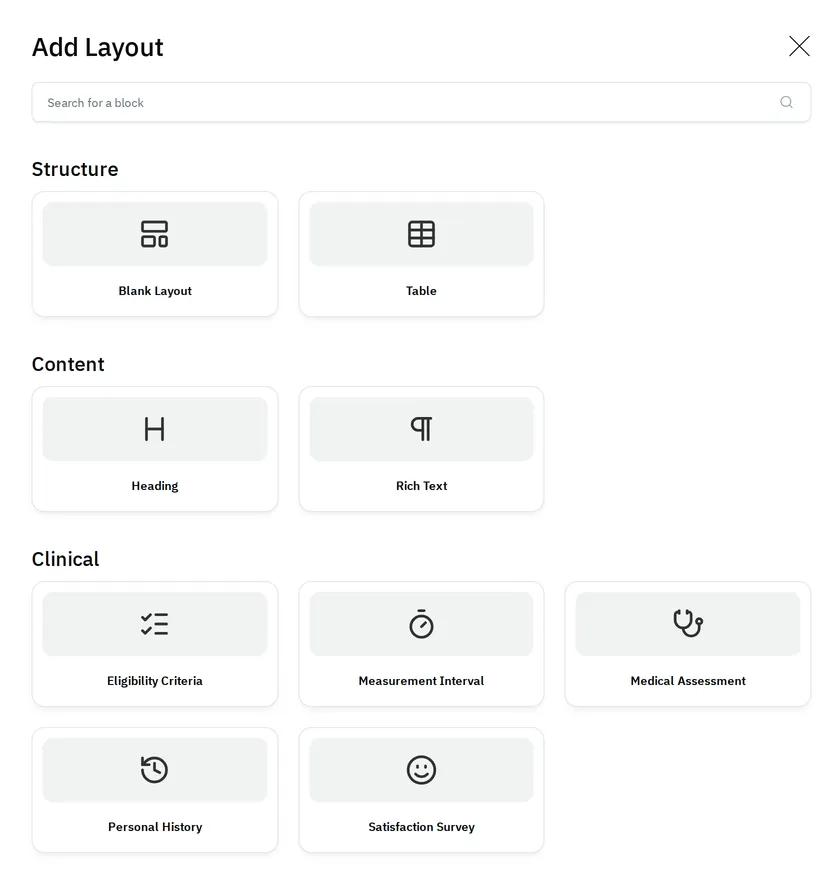
Select the kind of section. Under Structure, select Blank Layout for a section of your own fields. The Clinical group has ready-made sections, such as Eligibility Criteria or Medical Assessment.
-
The new section is collapsed. Select Show All to open it.
-
In Label, enter the section’s title.
Add a field to a section
Section titled “Add a field to a section”-
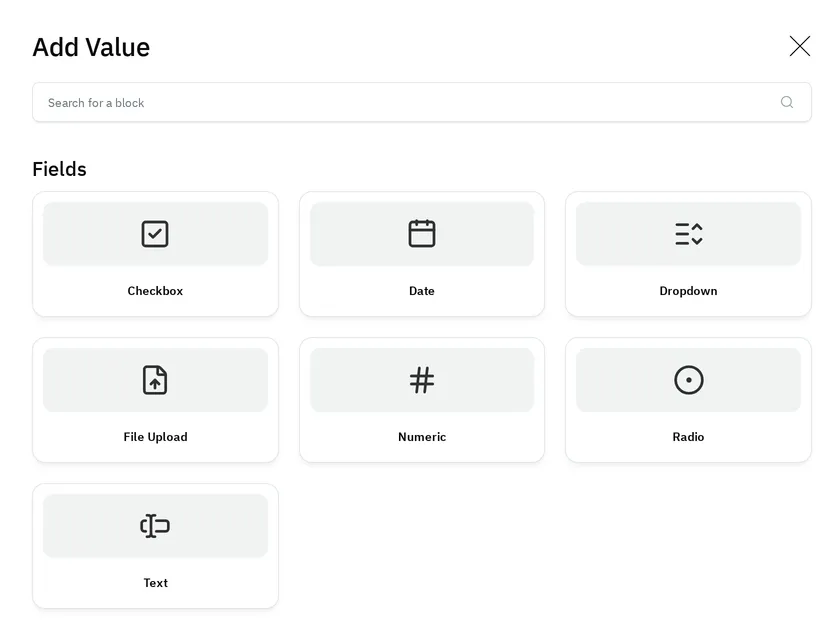
In the section, select Add Value. Under Fields, select the kind of field, such as Numeric, Date or Dropdown. Further down, the Clinical and Safety groups offer ready-made fields, such as Blood Pressure or Adverse Event.
-
Select Show All to open the field.
-
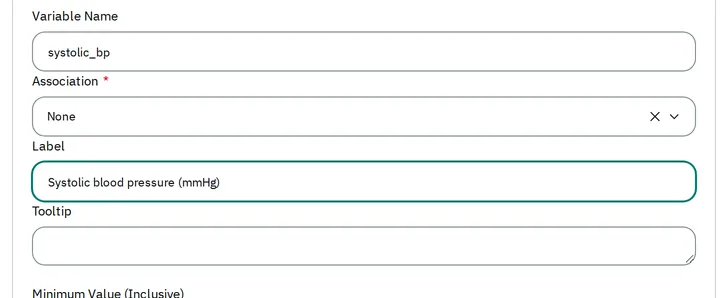
In Variable Name, enter a short name, such as
systolic_bp. Validation rules and calculated fields refer to the field by this name, which must be unique in the visit. -
In Label, enter the question that investigators see. Use Tooltip for a hint.
-
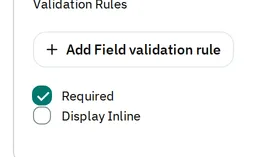
Check Required if investigators must fill it in to complete the visit.
Check values with a validation rule
Section titled “Check values with a validation rule”A Numeric or Date field can have validation rules. A rule describes the values that are not valid, and the message that investigators then see.
-
In the field, under Validation Rules, select Add Field validation rule.
-
In Rule ID, enter a name that starts with a letter, and holds only letters, numbers and underscores. It must be unique in the study.
-
Under Invalid-state condition, select the field and a comparison. Enter a value. For example, the field,
greaterThanand250reject a systolic pressure above 250. -
Enter both an English message and a French message. The admin does not publish a rule that lacks one.
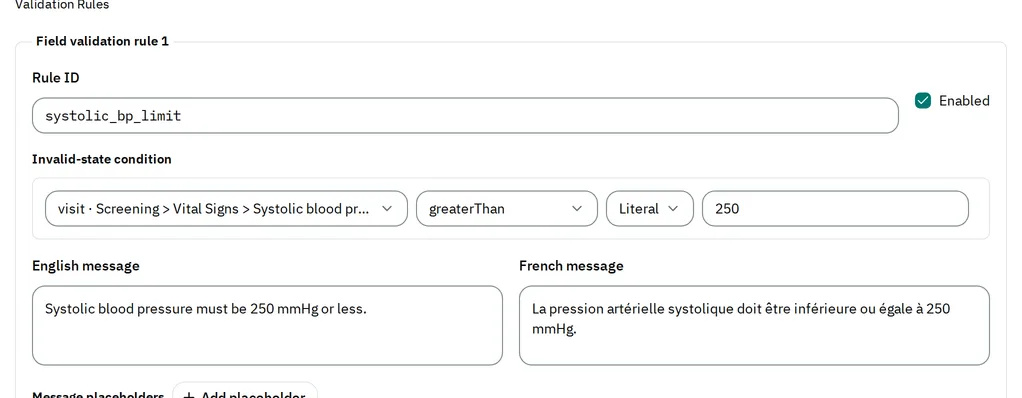
To pause a rule but keep it, uncheck Enabled.
In the eCRF, the message shows under the field as soon as an investigator enters a value that breaks the rule, in their language.
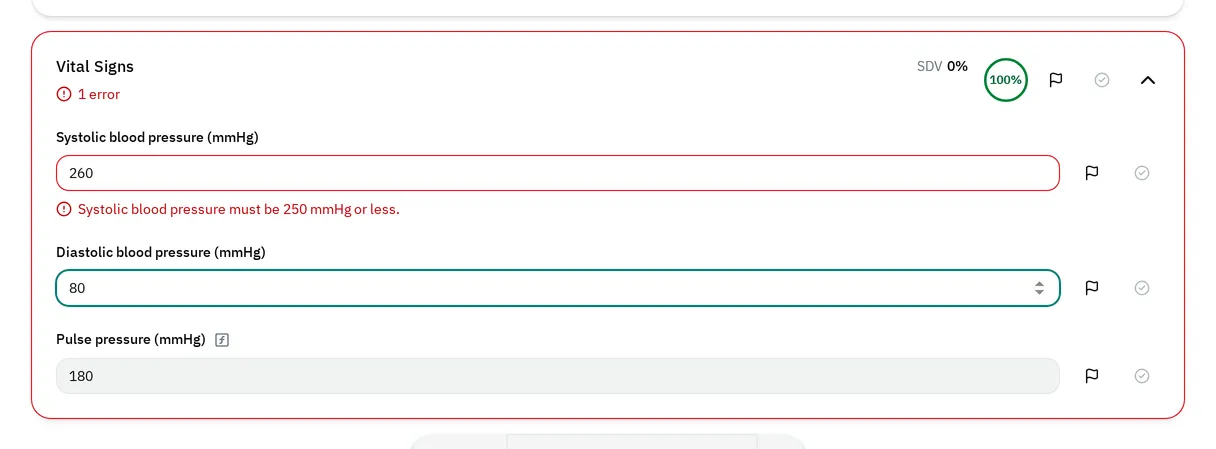
The investigator can still save their progress. But until someone corrects the value, nobody can complete the visit, verify the field or sign off the subject.
Calculate a field from others
Section titled “Calculate a field from others”The eCRF can calculate a Numeric or Date field from other fields of the visit. For example, it calculates a pulse pressure from the systolic and diastolic pressures.
-
In the field, under Calculated Field, enter the formula in Formula.
-
To use another field, select it in Insert protocol reference. Select Insert reference. The admin lists each field the formula uses.
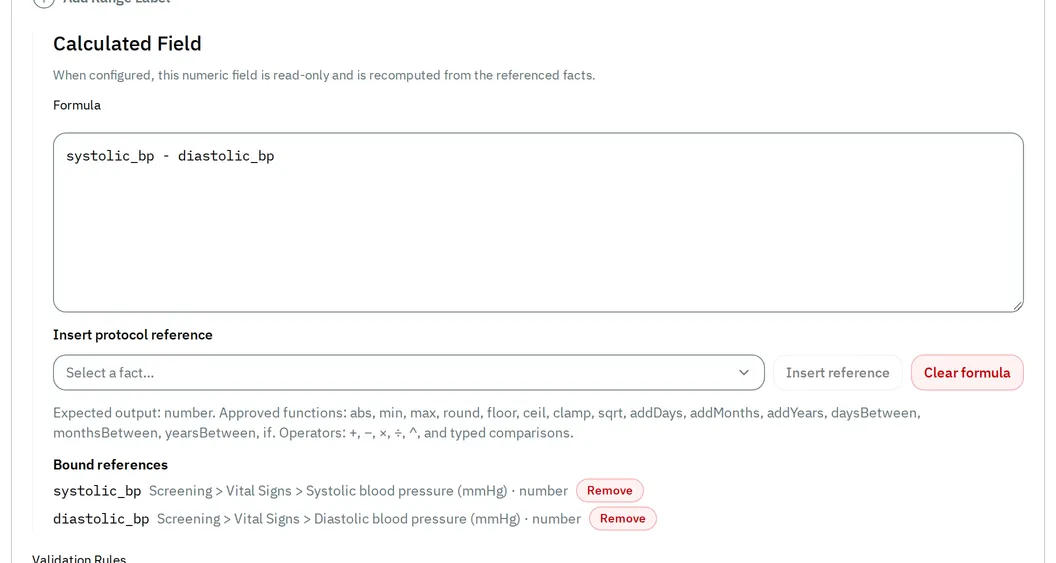
In the eCRF, investigators cannot type in a calculated field.
It updates as they fill in the fields it uses, and the eCRF calculates it again when they save.
The field above shows 180 for a systolic pressure of 260 and a diastolic pressure of 80.
If the admin does not publish
Section titled “If the admin does not publish”When you select Save Draft, the admin saves the protocol even if it has problems. When you select Publish changes, the admin checks the protocol. If it finds problems, it refuses to publish and lists each one, with the visit and the field first. For example, a rule without a French message, a Rule ID used twice, or a formula that uses a field that no longer exists. Correct them. Then publish again.
Change a study that already has data
Section titled “Change a study that already has data”The admin lets you change a published study whose subjects already have data. Before you do, know how the eCRF reads that data:
- It matches saved visit data to visits by their position in the protocol. If you delete or move a visit, the eCRF pairs that data with another visit.
- It matches saved values to the fields where investigators entered them. If you delete a field, or replace it with a field of another kind, the eCRF hides its values.
- Validation rules apply to data already entered. A new rule can stop the verification or sign-off of visits that are already completed, until someone corrects their data.