Set the brand name, logos and custom hostname
The brand decides how the eCRF presents itself to users: the name and logos they see, and the hostname they open it on.
Who can do this: System Administrator.
Change the brand
Section titled “Change the brand”-
In the admin, open Brand.
-
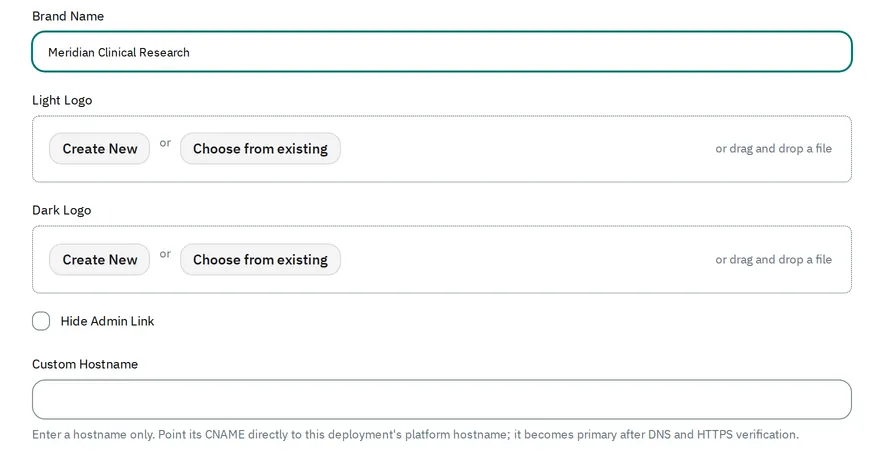
Fill in the fields described below.
-
Select Save.
What each field does
Section titled “What each field does”-
The Brand Name shows in the eCRF’s sign-in page and in its browser tab titles. Until you set one, the eCRF shows Veritas Analytics.

-
The Light Logo shows on light backgrounds, such as the eCRF’s header. The Dark Logo shows on dark backgrounds, such as the dark panel of the sign-in page and the dark theme. Without a Dark Logo, the eCRF uses the Light Logo everywhere. To add an image, select Create New, or select one uploaded before.
-
If you check Hide Admin Link, the eCRF hides the Admin Portal card from its home page. Administrators still reach the admin at its own address.
-
The Custom Hostname serves the eCRF on your own hostname, such as
ecrf.example.com.
Use your own hostname
Section titled “Use your own hostname”-
At your DNS provider, add a CNAME record for your hostname that points to this deployment’s platform hostname.
-
In Custom Hostname, enter the hostname alone, without
https://or a path. -
Select Save.
The deployment checks the DNS record and sets up HTTPS for the hostname. Once the deployment verifies both, the eCRF’s links and emails use your hostname, and the platform hostname still works.
The deployment never serves the admin on your hostname: the admin stays on its admin hostname. If you enter the platform or admin hostname, the admin refuses it with Use a hostname different from this deployment's platform and admin hostnames.